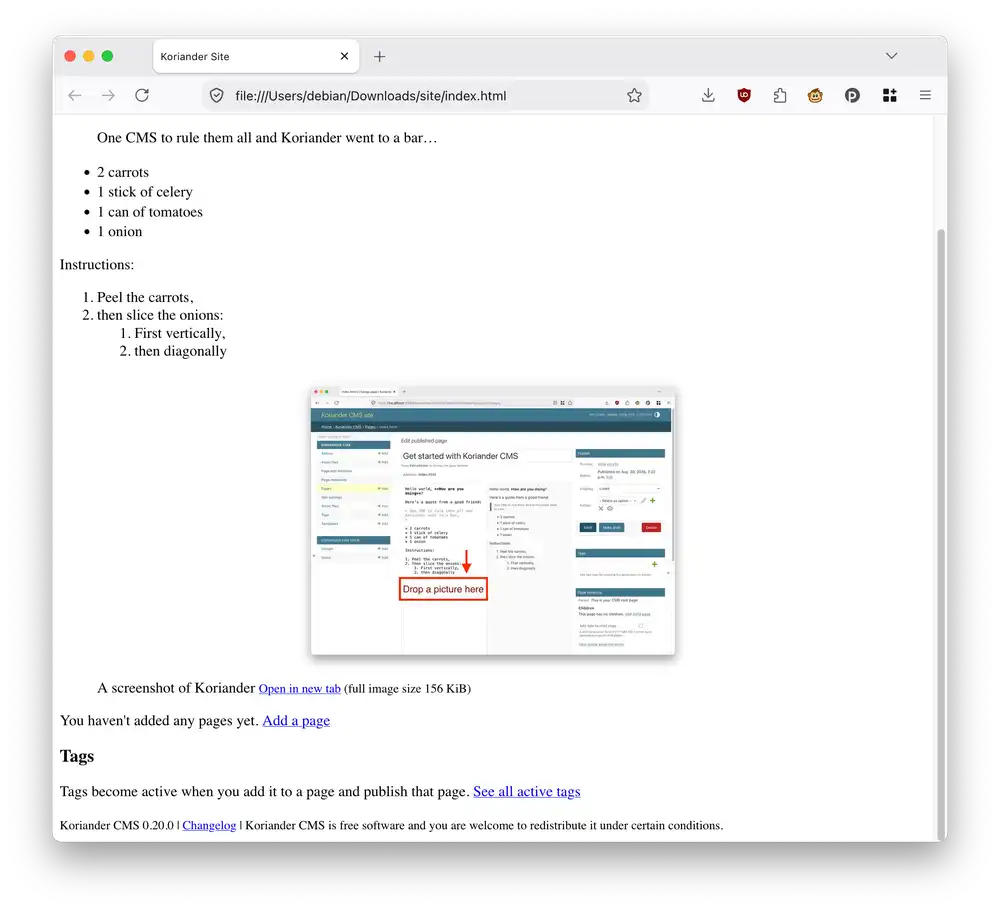
Here's how to make your first site in Koriander CMS. After finishing this tutorial you'll achieve the following:
- Install and start Koriander CMS on your computer
- Edit your first page on your Koriander CMS site
- Customize your first page's template
- Change how your first page looks like with a stylesheet
- Download a copy of your site as a ZIP file
Install Koriander CMS
Install Koriander CMS on your computer using pipx. Install pipx using the official pipx installation instructions. Open a terminal on your computer and make sure that you can run pipx. Type the following command and press the Enter key:
pipx --version
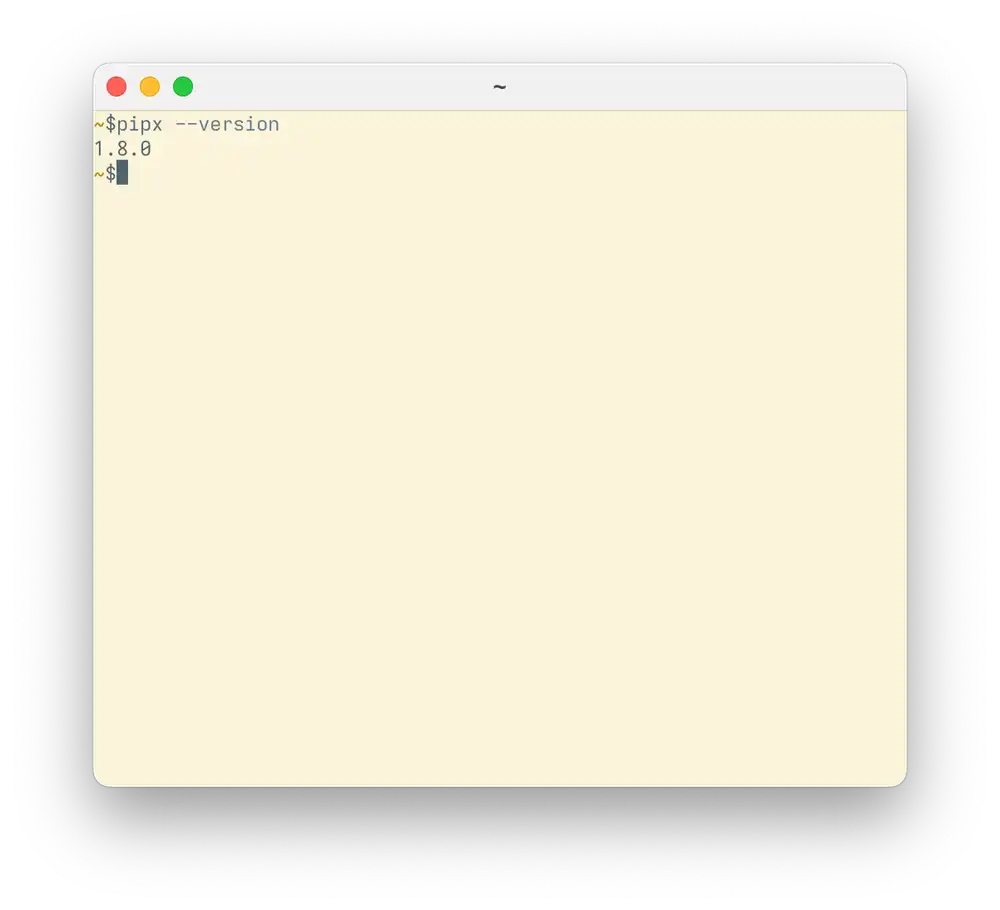
On the author's computer this command prints the following:
1.8.0
If you see pipx printing a version number like 1.8.0, you're ready to install Koriander CMS on your computer. Type the following command and press the Enter key:
pipx install koriander
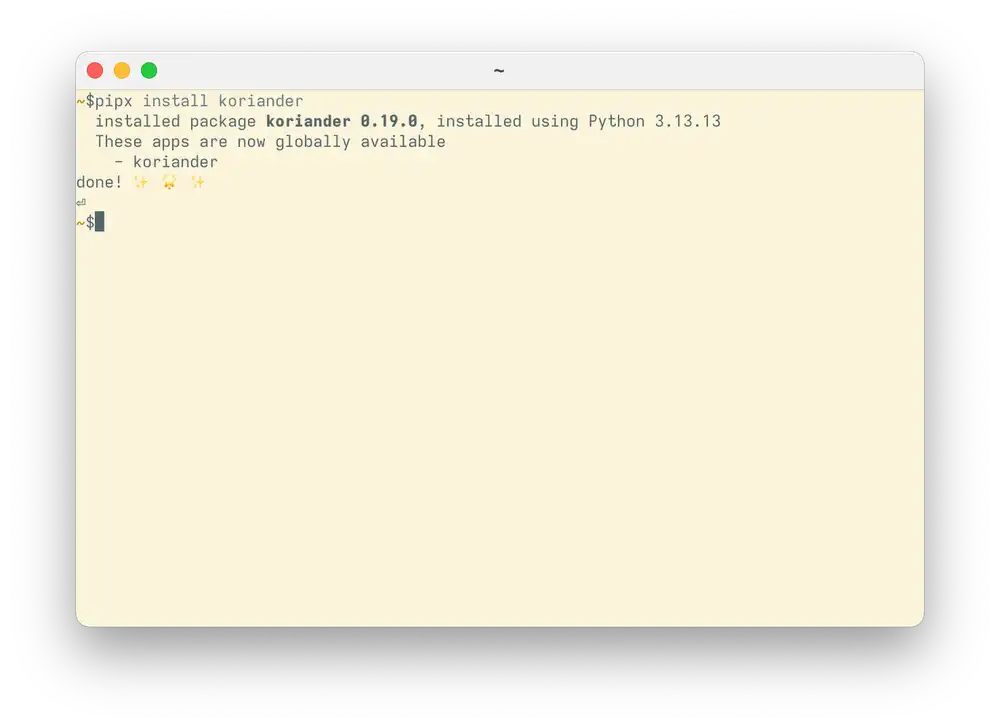
When Koriander CMS installs, pipx install koriander prints the following:
  installed package koriander 0.19.0, installed using Python 3.13.13
  These apps are now globally available
    - koriander
done! ✨ 🌟 ✨
The version numbers printed here, 0.19.0 and 3.13.13 may be different when you install Koriander CMS.
Launch Koriander CMS
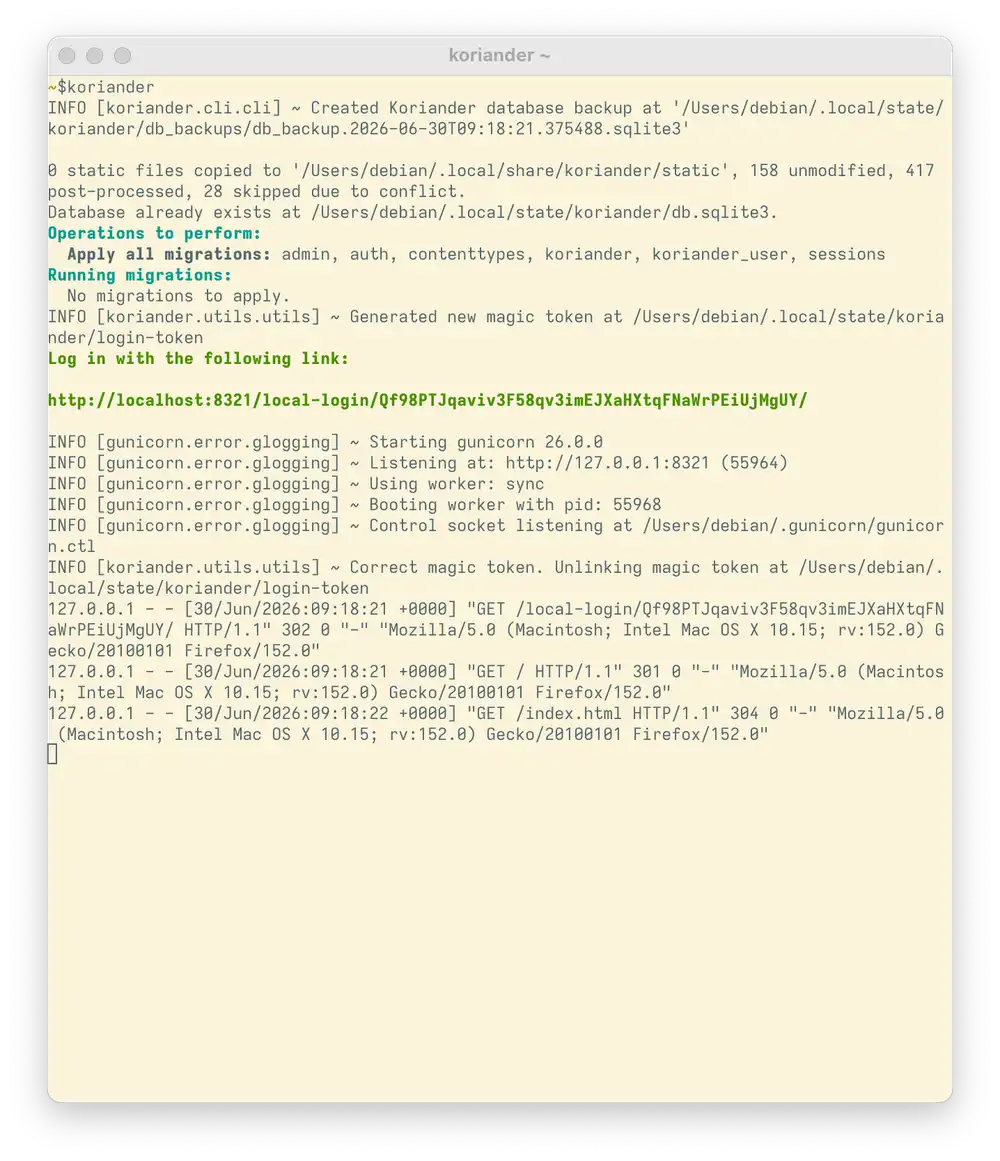
Type the following command in your terminal to launch Koriander CMS:
koriander
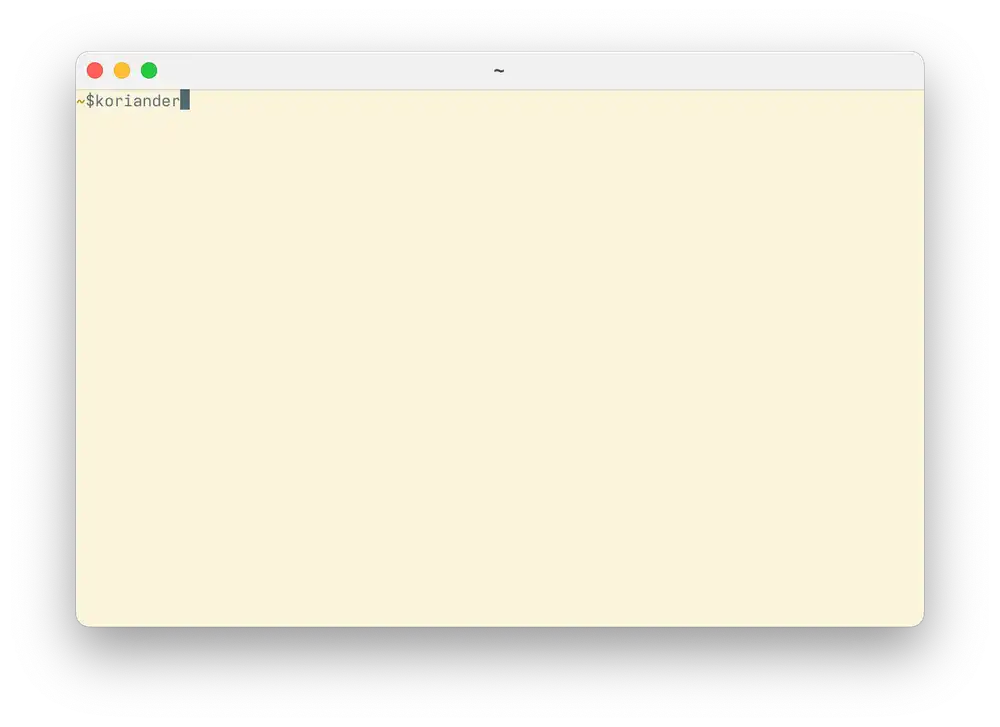
When you launch Koriander CMS, it automatically opens its start page in your browser. If your browser doesn't open, copy the green address below Log in with the following link: .
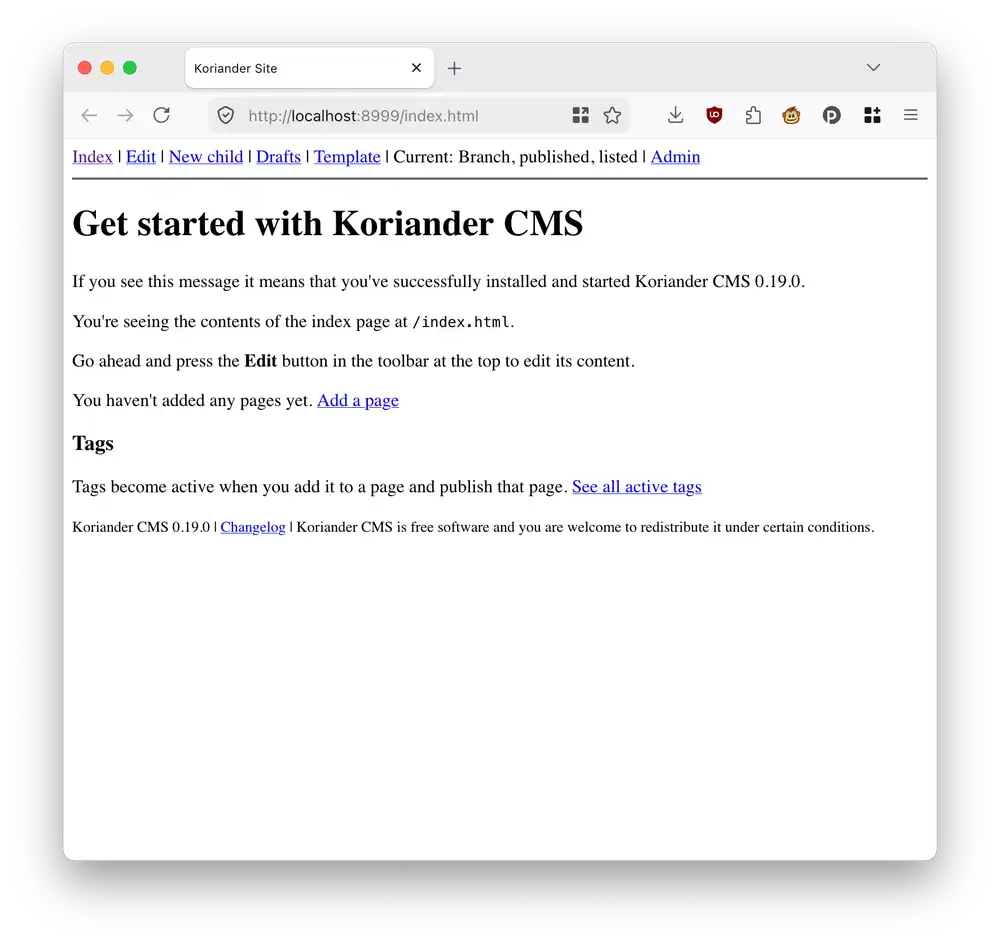
Once Koriander CMS opens in your browser, you should see the following page:
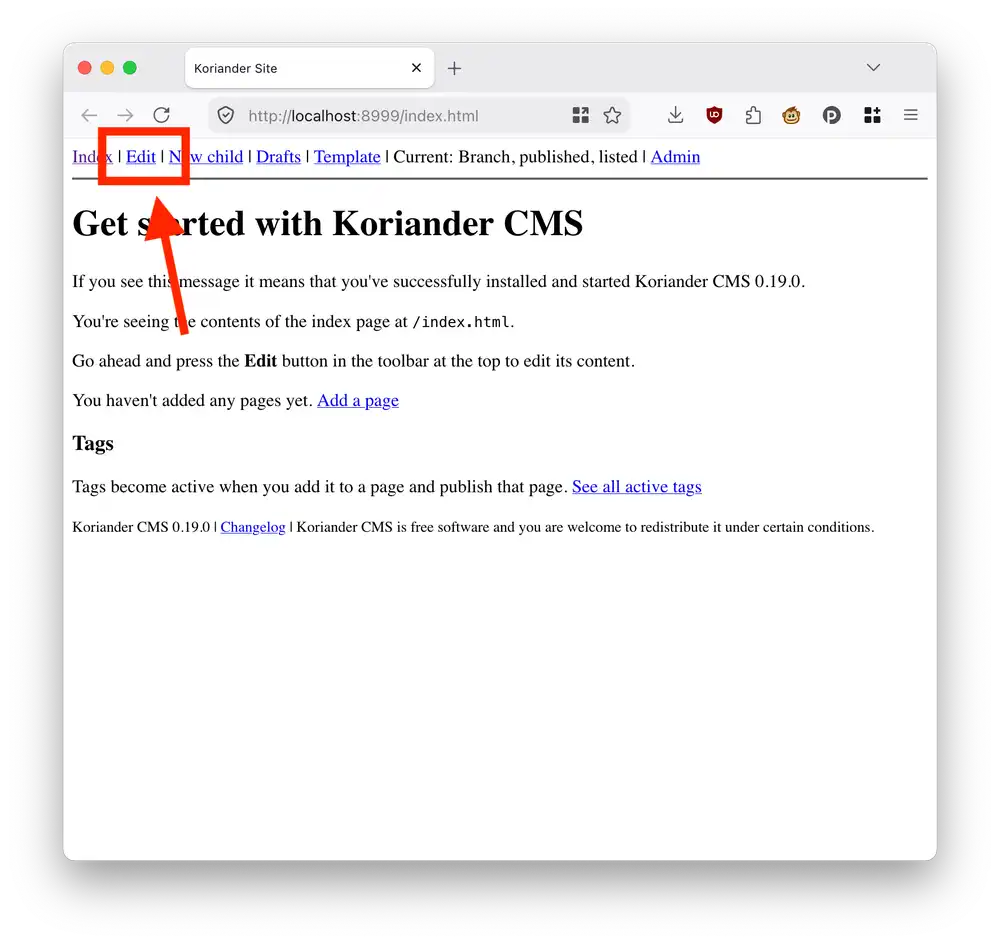
Press the blue Edit page link in the top to open the page editor for the index page:
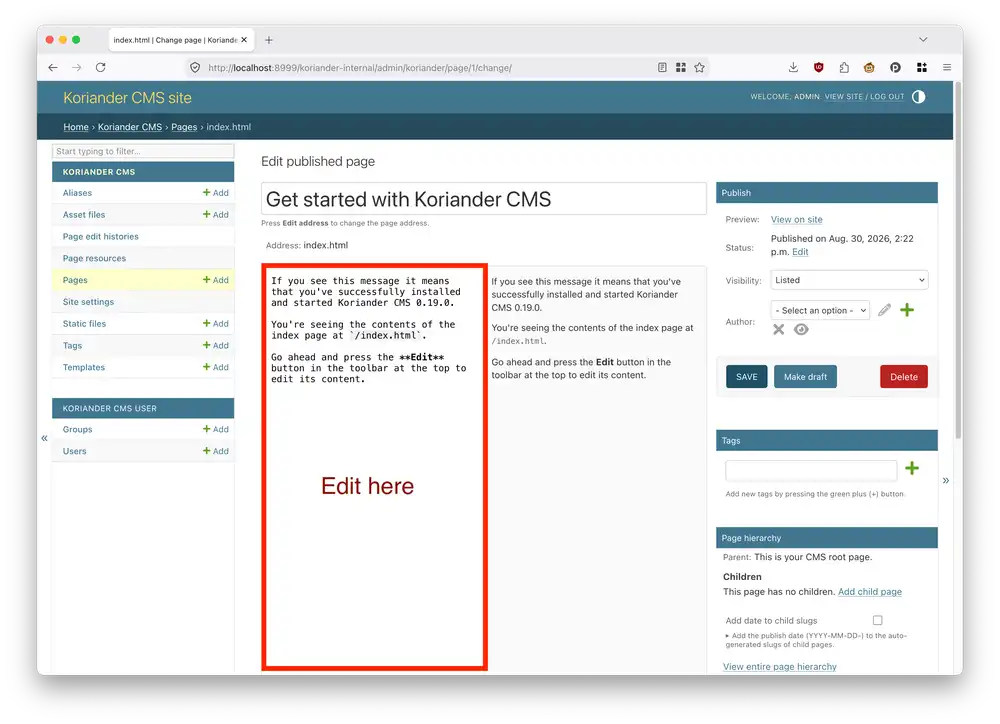
This takes you to the page editor for the index page. You can use the Markdown editor on the left side to edit the index page contents:
Here's an example of what you may want to add to the page:
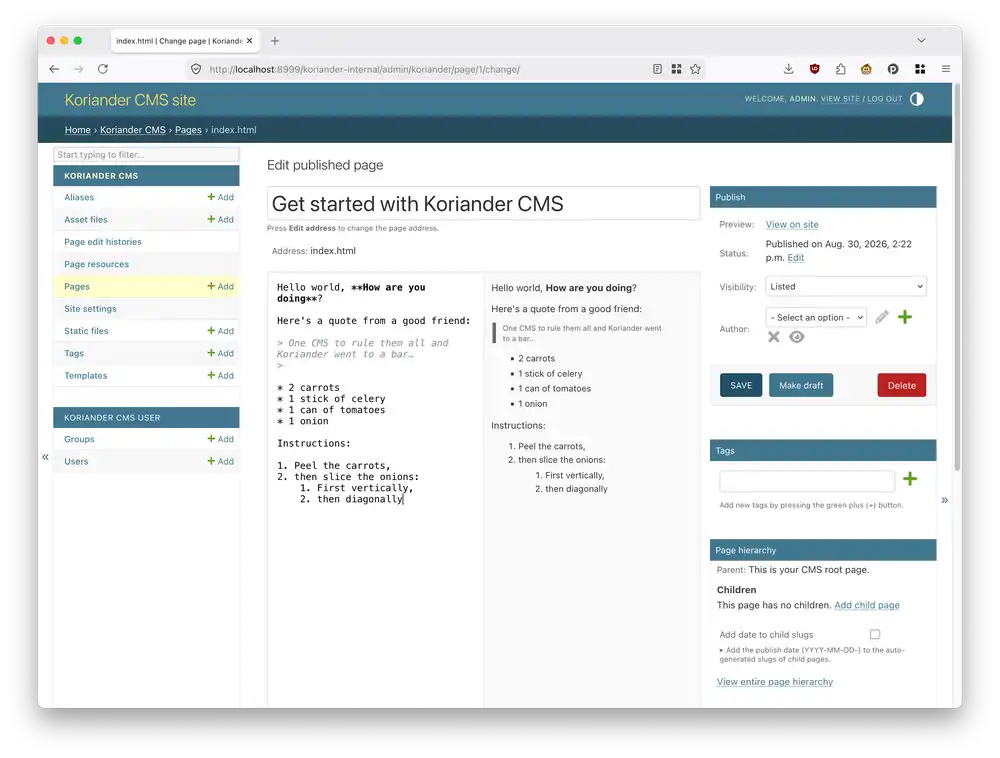
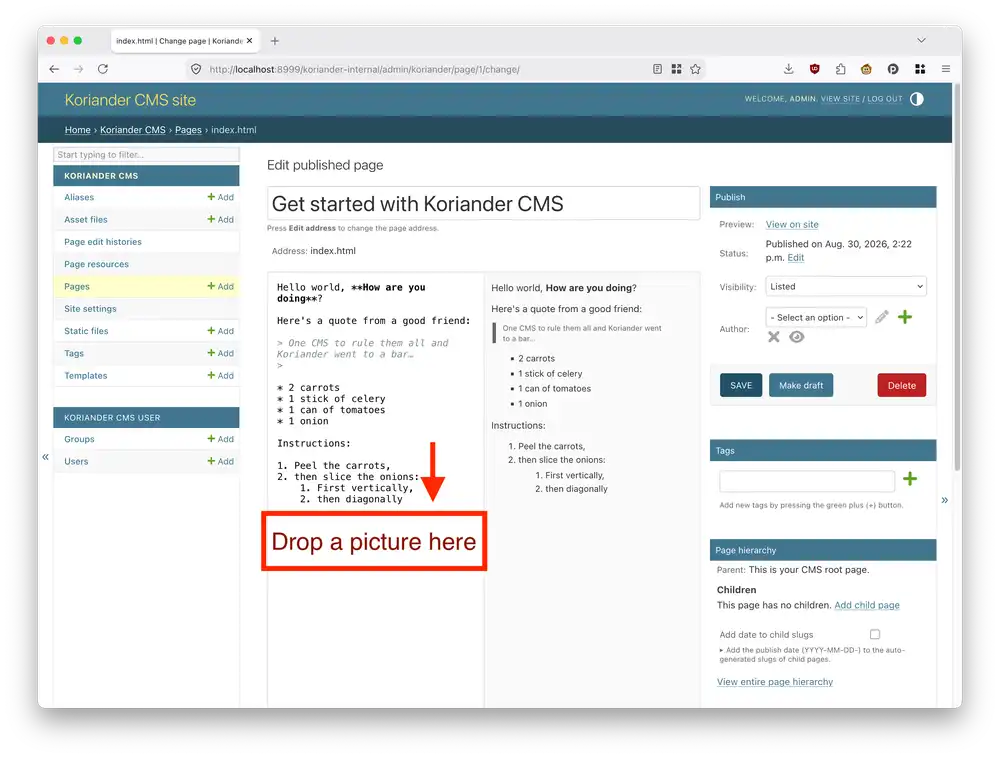
Try uploading a picture by selecting it in your operating system's file browser and dropping it in the editor:
A Markdown  image appears on the left side and the preview on the right should show the actual image:
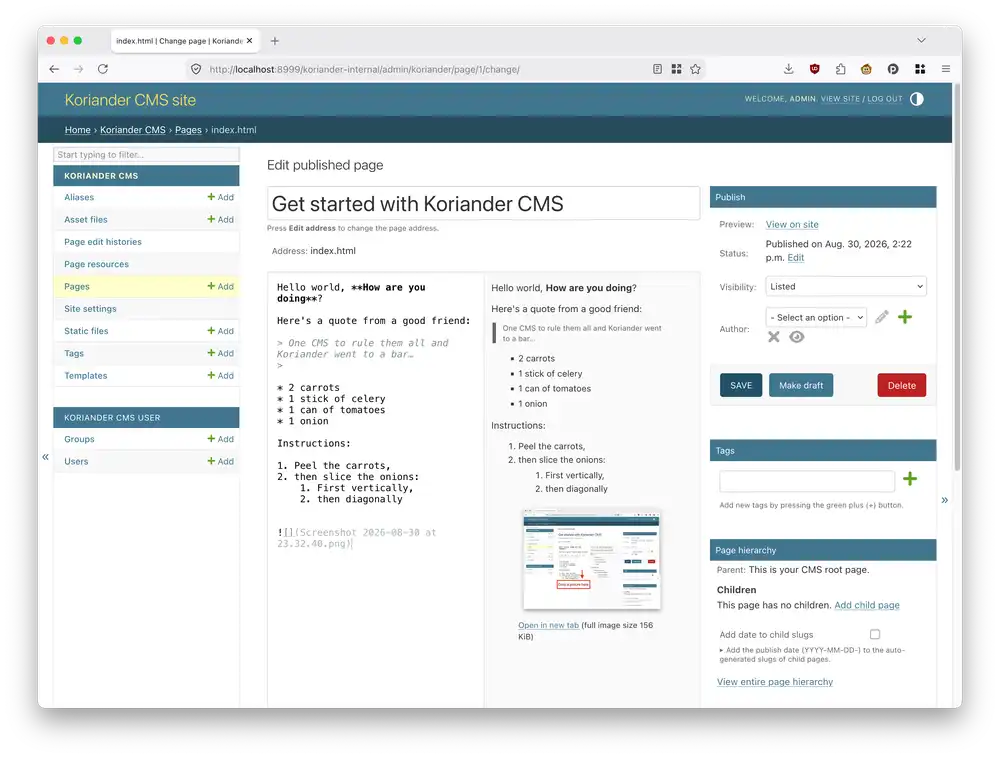
Edit the picture description by adjusting the Markdown text that Koriander inserted for you. Here's the Markdown from the screenshot before:

Change the picture description by writing something between the ![ and ] symbols:

The preview updates and shows the picture description that you've entered:
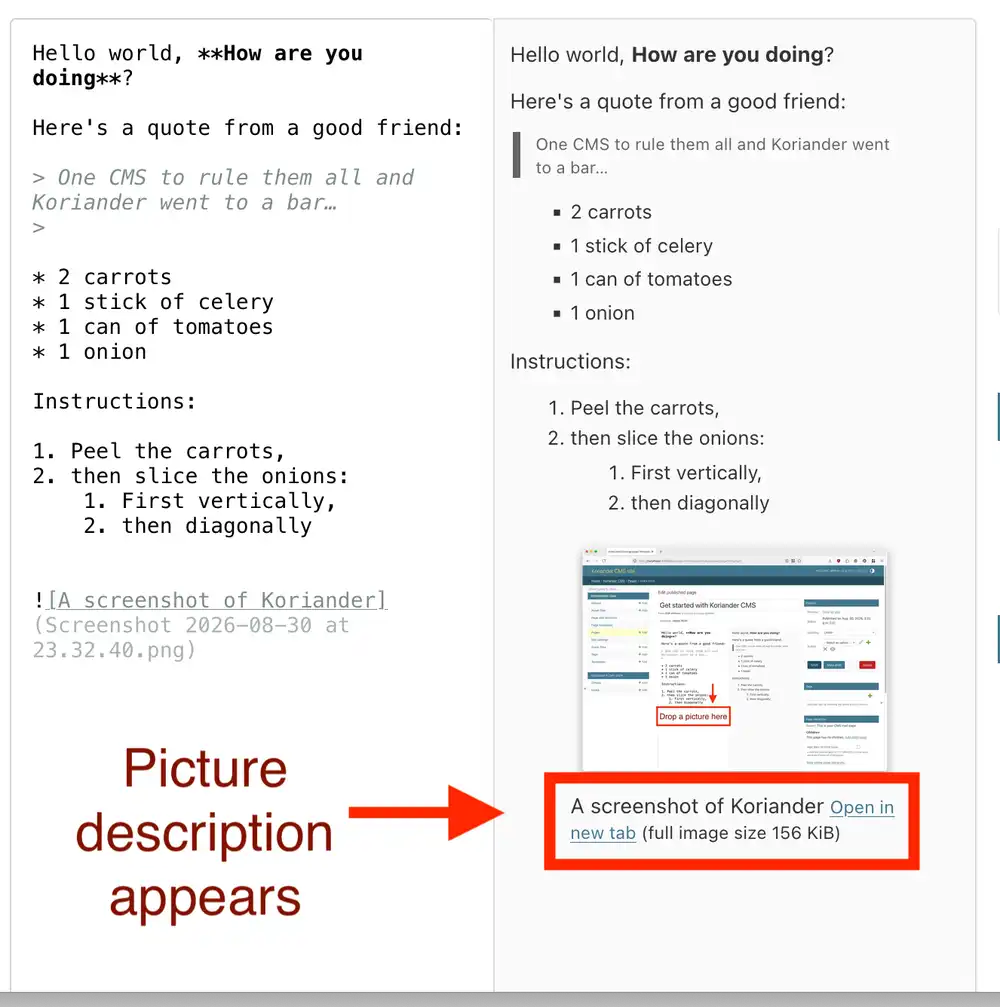
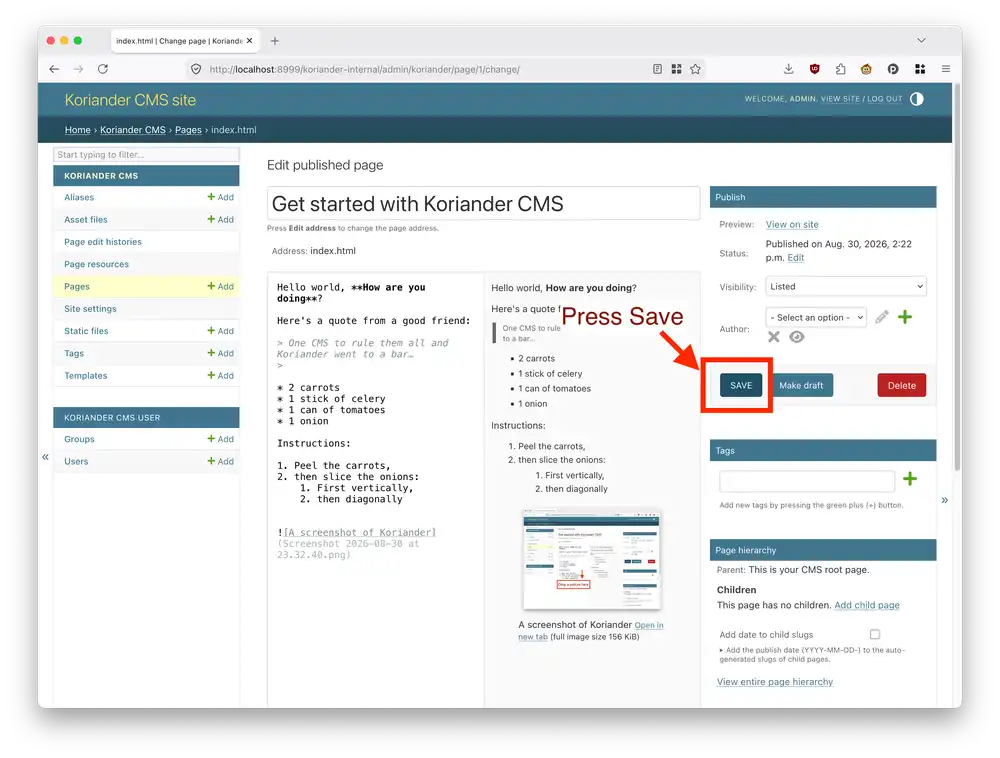
Save your changes by pressing the Save button on the right side:
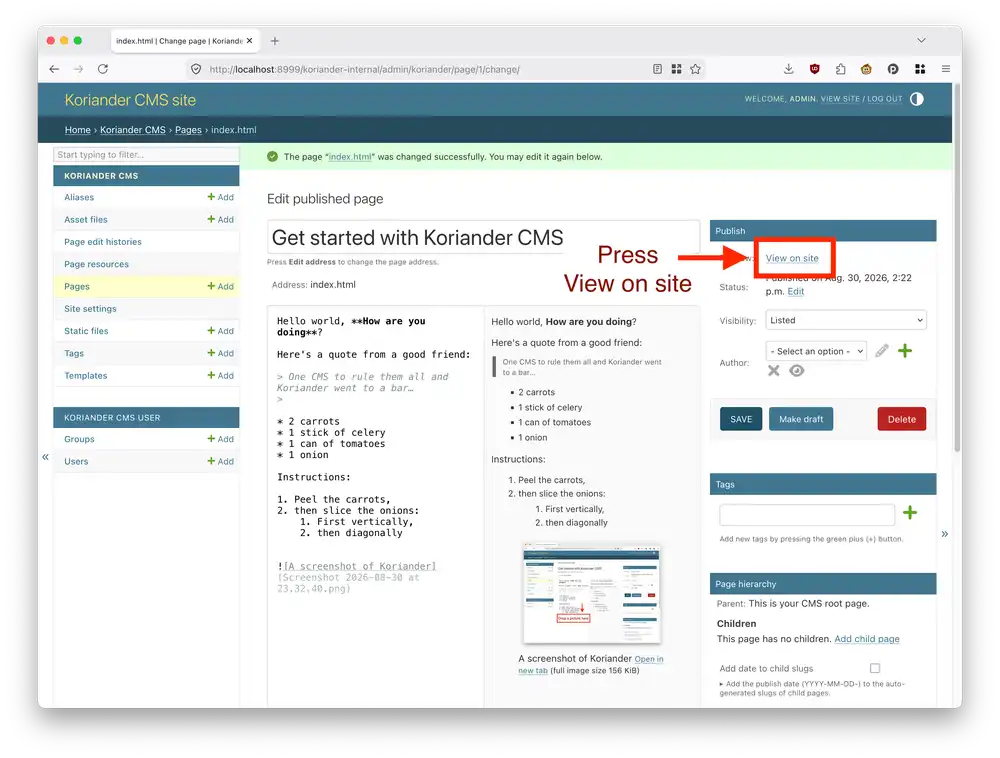
Go back to the start page and see your newly created page:
Here's what your index page should look like now:
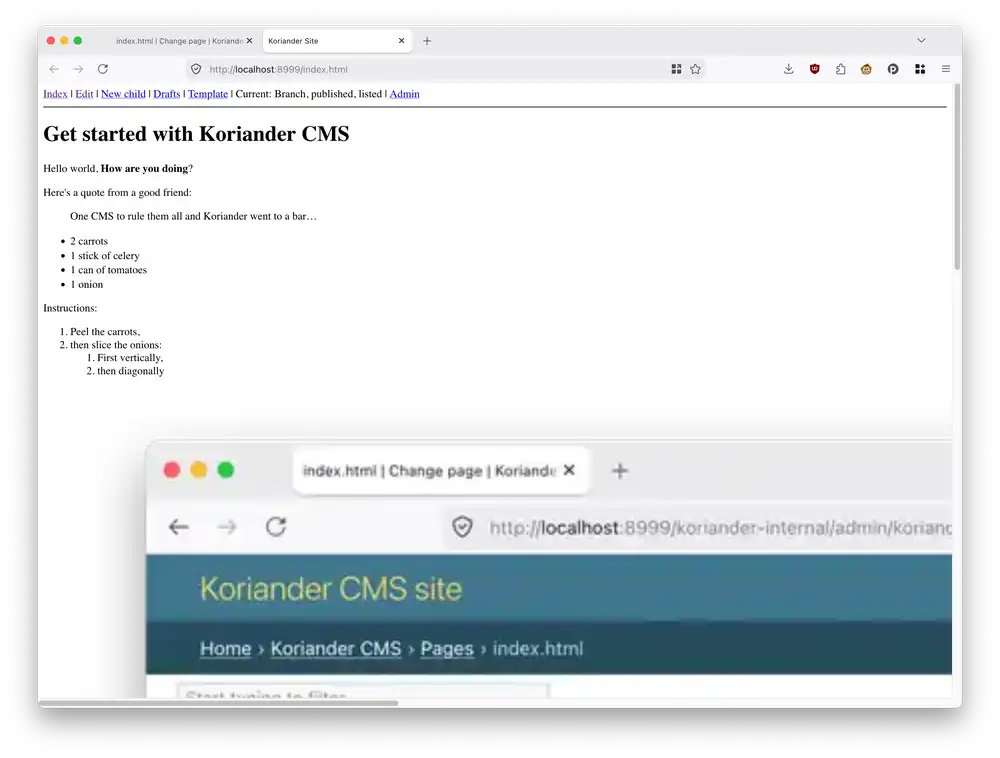
Perhaps you've noticed that the image is quite big! Here's how to fix it.
Customize the template
Select the Template link in the top toolbar:
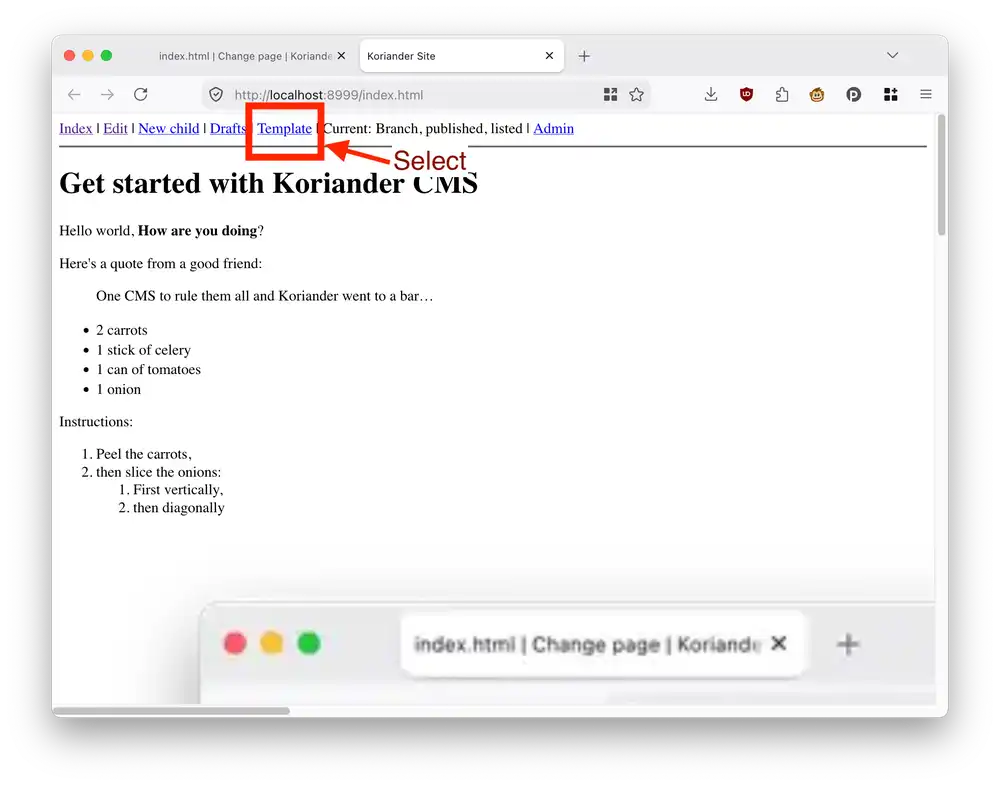
This opens up the template editor for the index page. Koriander CMS inserts the template that it currently uses for the index page and you can customize it here:
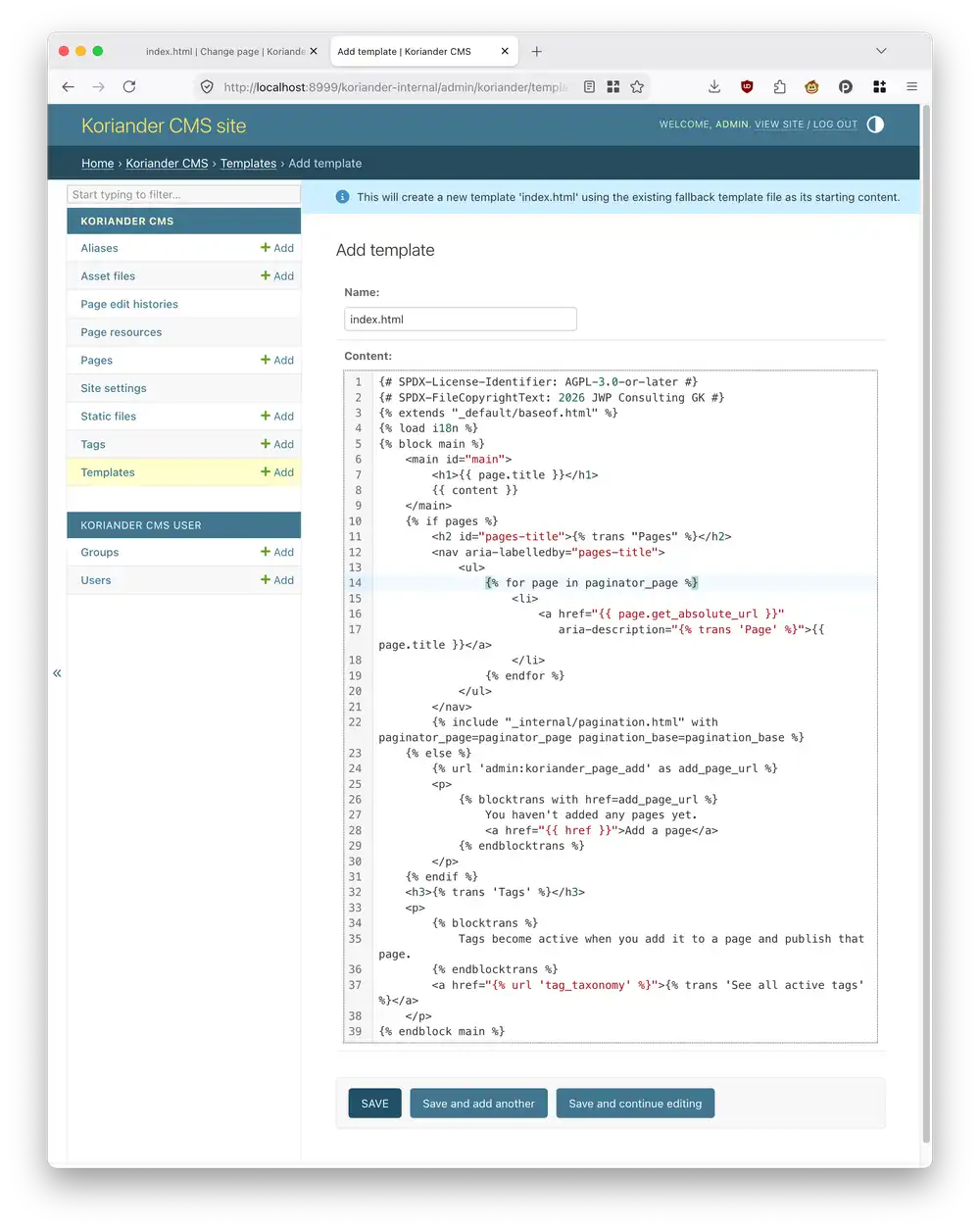
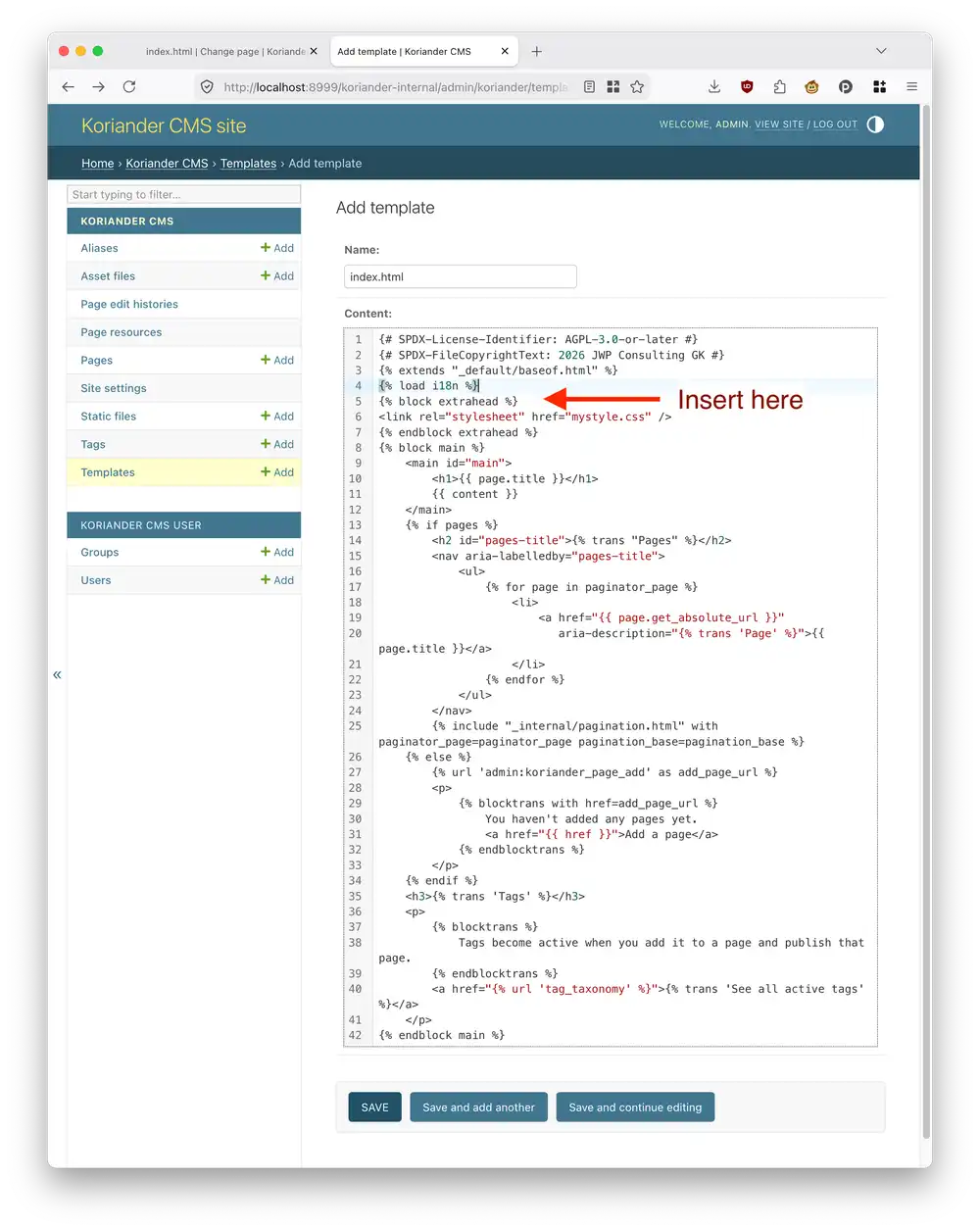
Under {% load i18n %}, insert the following text:
{% block extrahead %}
<link rel="stylesheet" href="mystyle.css" />
{% endblock extrahead %}
This is what the template should look like after you insert this text:
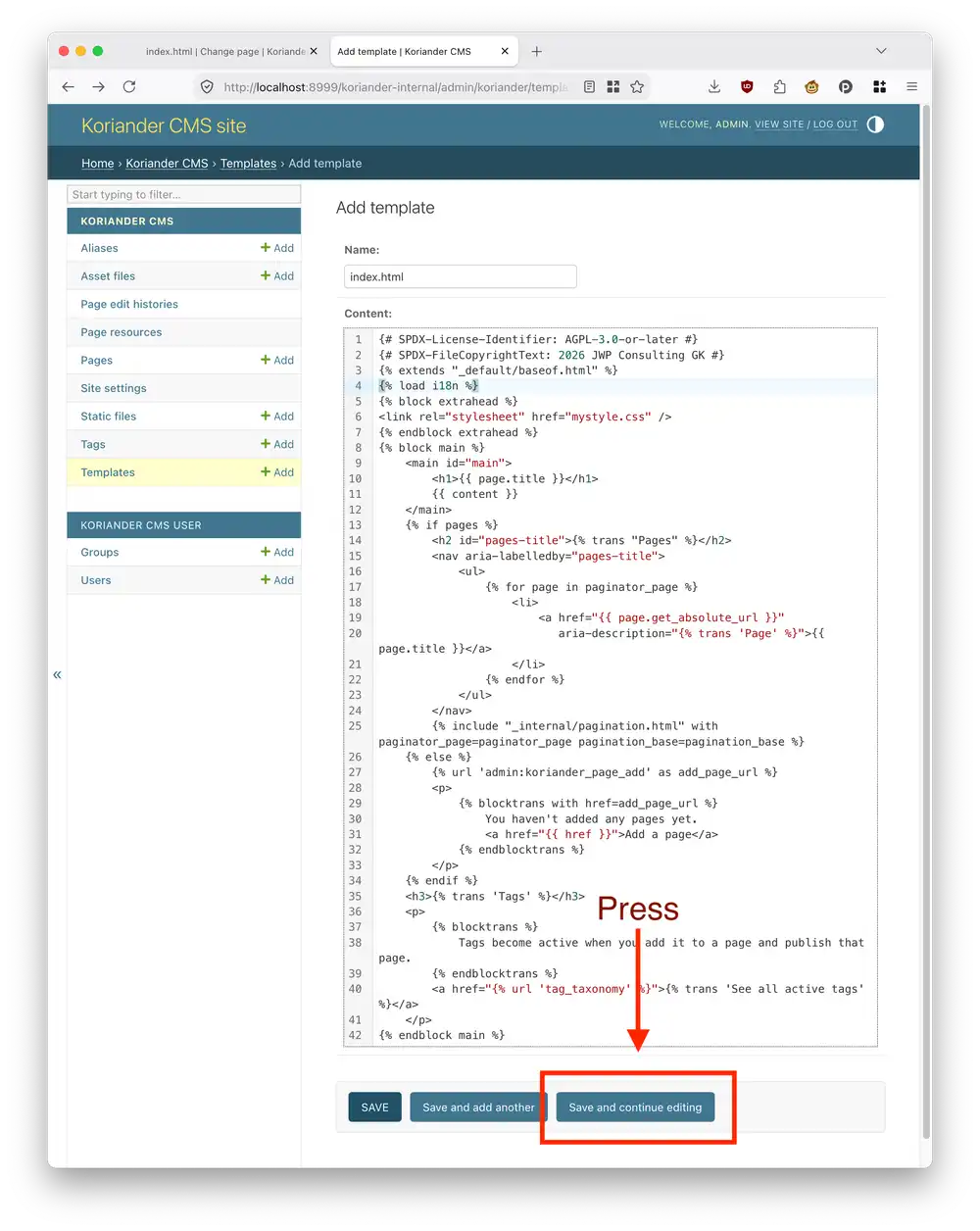
Scroll down and press Save and continue editing:
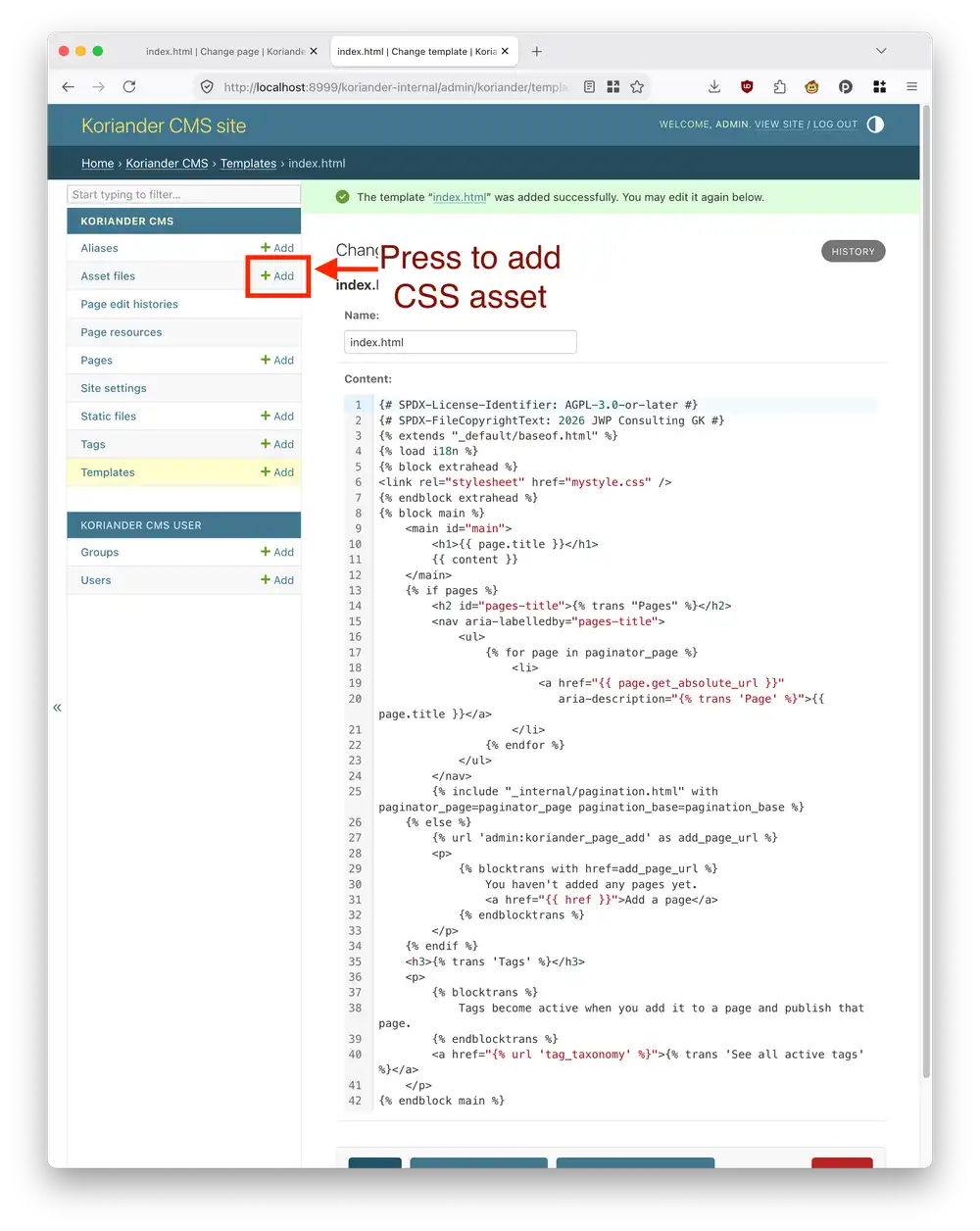
Koriander CMS should show you the following message with green text:
The template "index.html" was addeedd successfully. You may edit it again below.
Create a CSS asset
Now press the green Add link next to the Asset files entry in the left Koriander CMS menu:
This opens up an editor in which you can create a CSS asset:
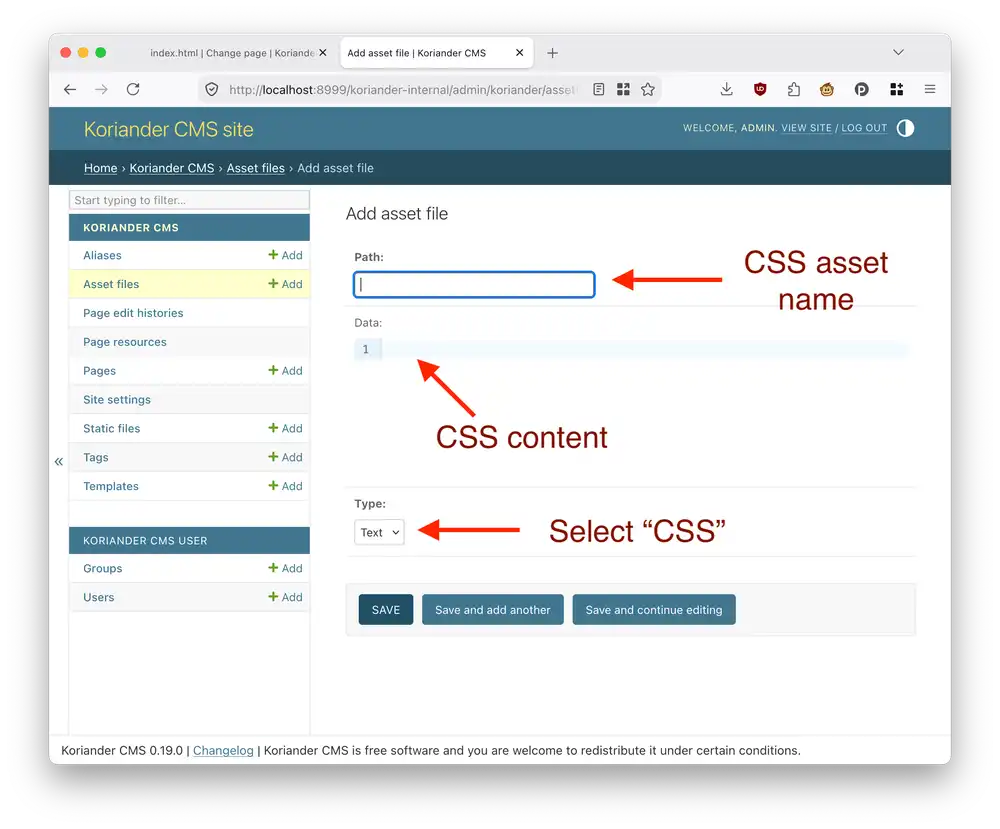
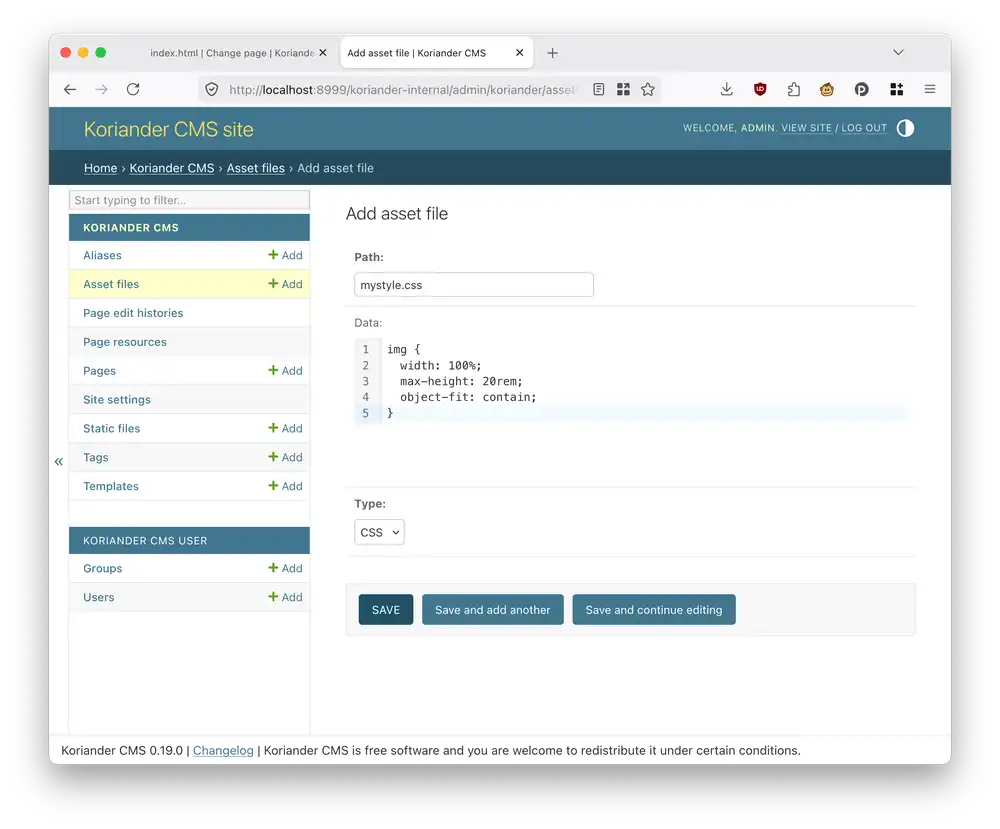
In the Path field, enter "mystyle.css". In the Data field, enter the following CSS contents:
img {
  width: 100%;
  max-height: 20rem;
  object-fit: contain;
}
In the Type field dropdown, choose CSS. Here's what you should end up with:
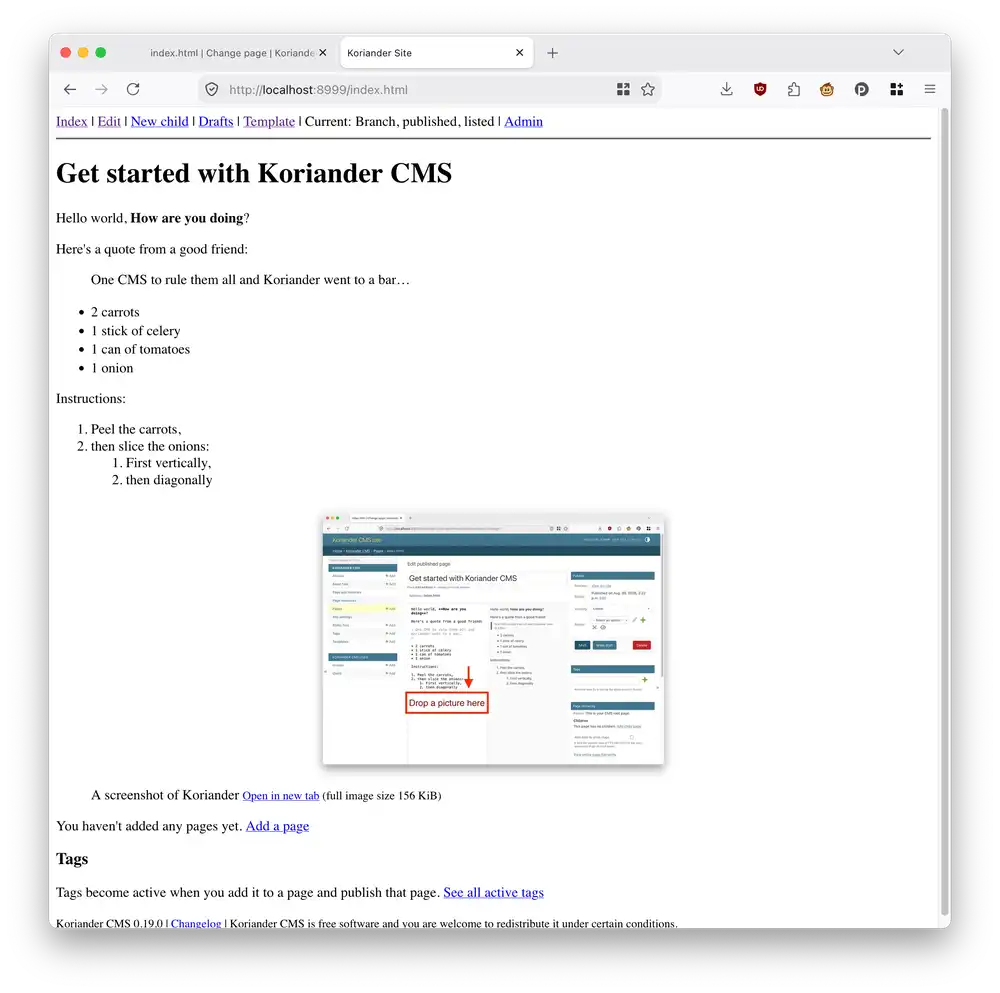
Press Save and then press View site to review your changes. Here's what the new index page should look like now:
Download your site
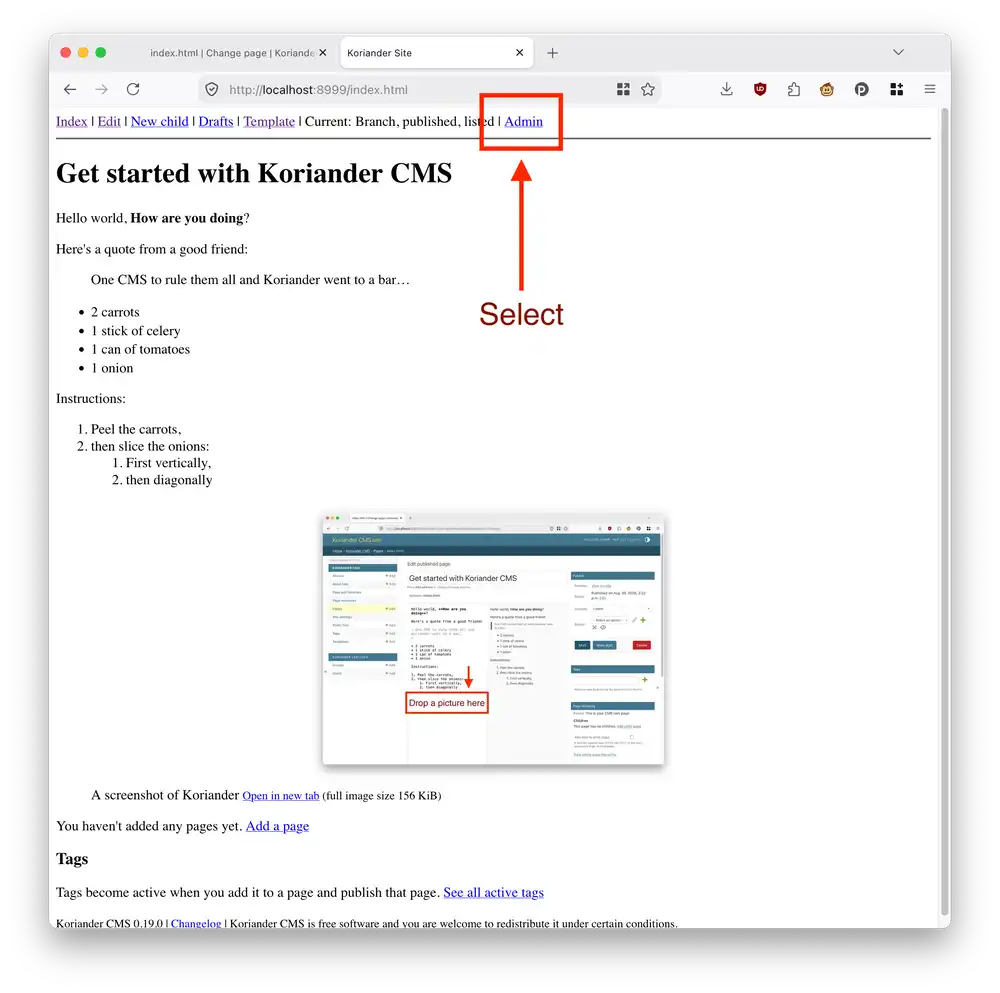
In this section you're going to download a copy of your site as a ZIP archive. First, go to the Koriander administration index by selecting the Admin link in the top toolbar:
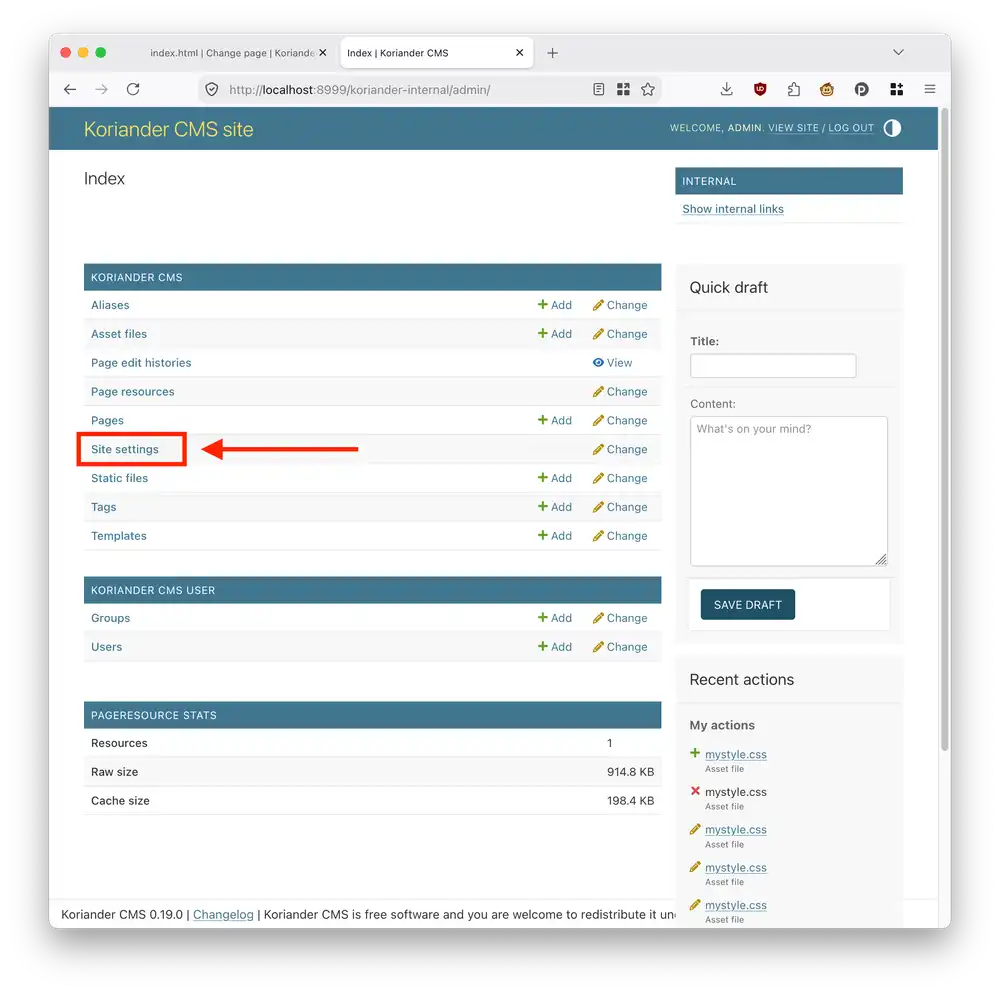
In the Koriander administration index, select the Site settings link:
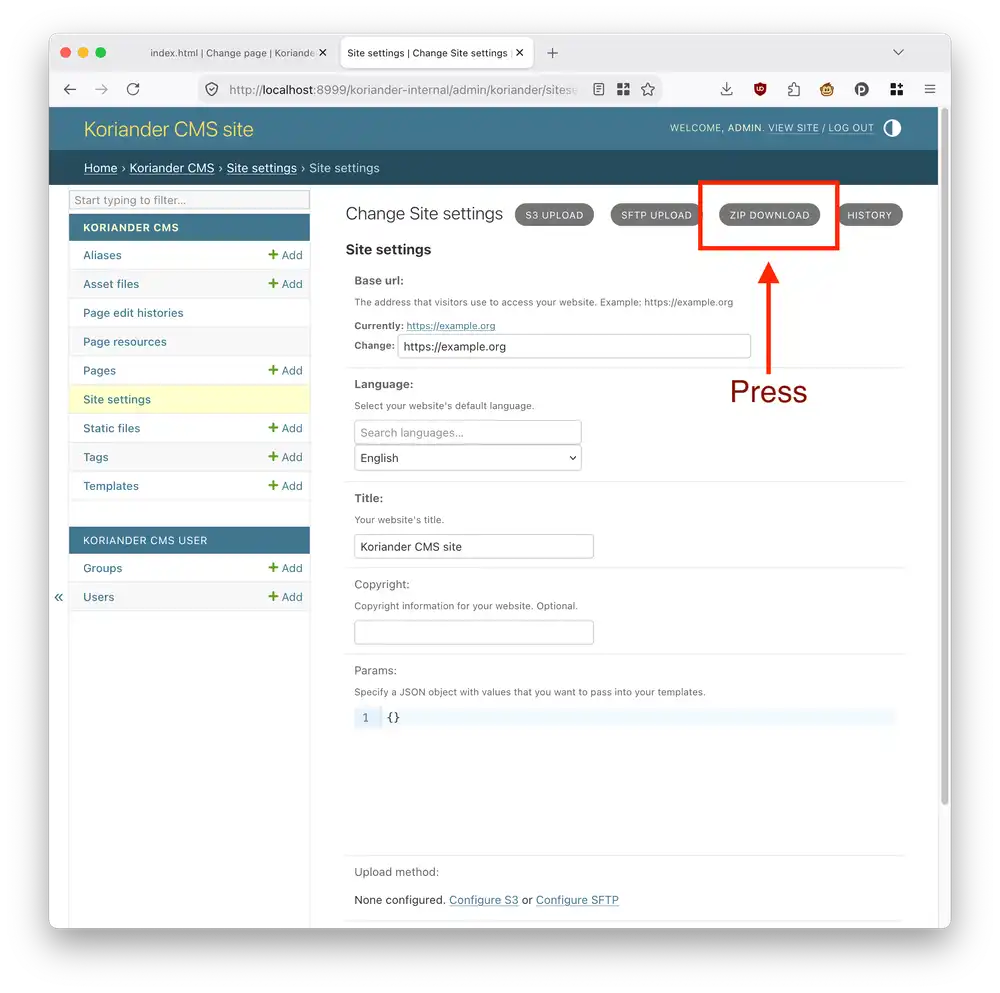
On the Change Site settings screen, press the grey ZIP Download button:
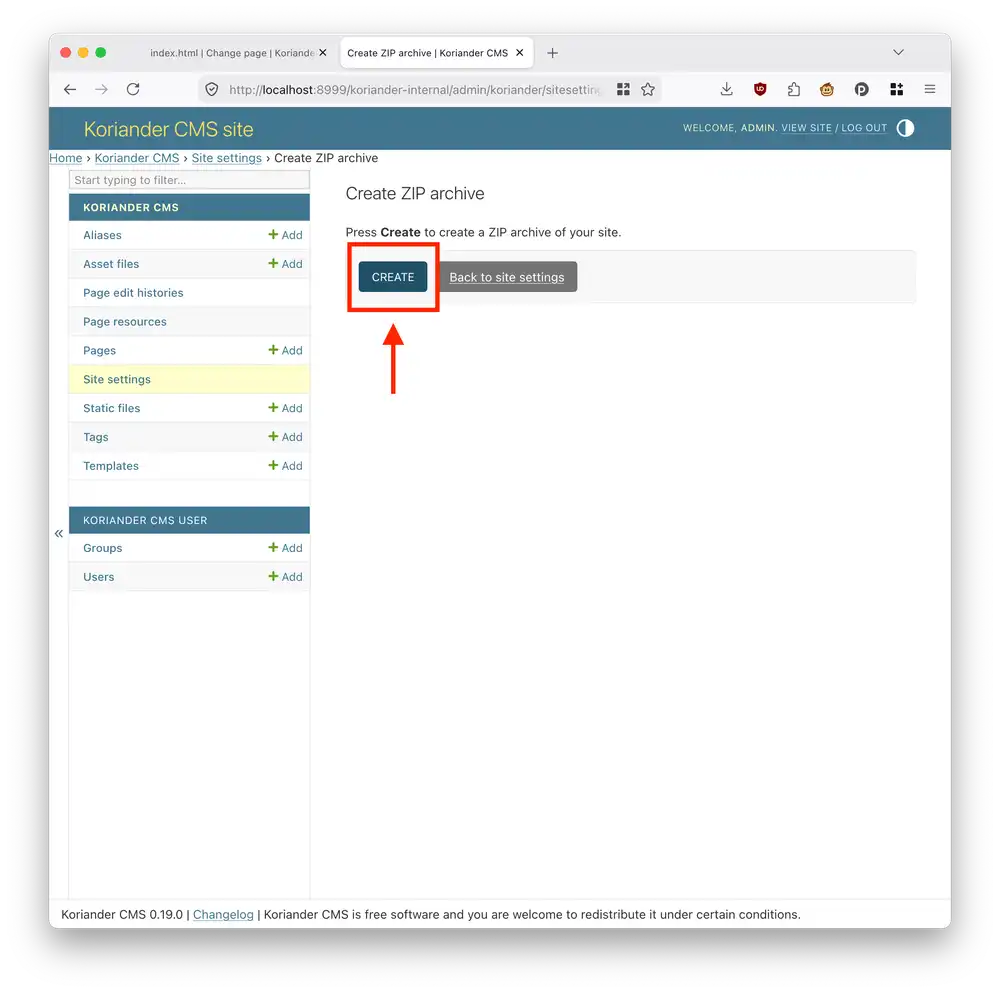
On the Create ZIP archive screen, press the Create button:
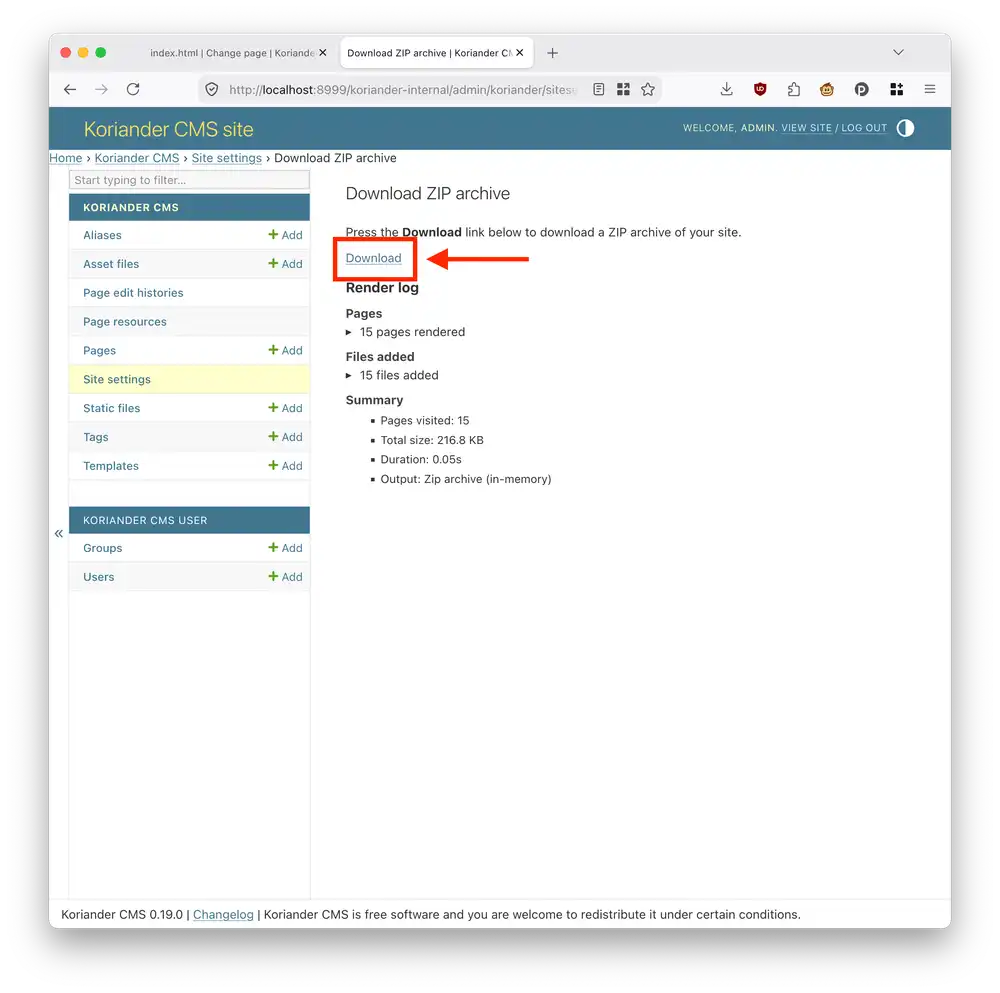
This should take you to the Download ZIP archive screen. Select the Download link to download a ZIP archive with your Koriander site. This downloads a site.zip file:
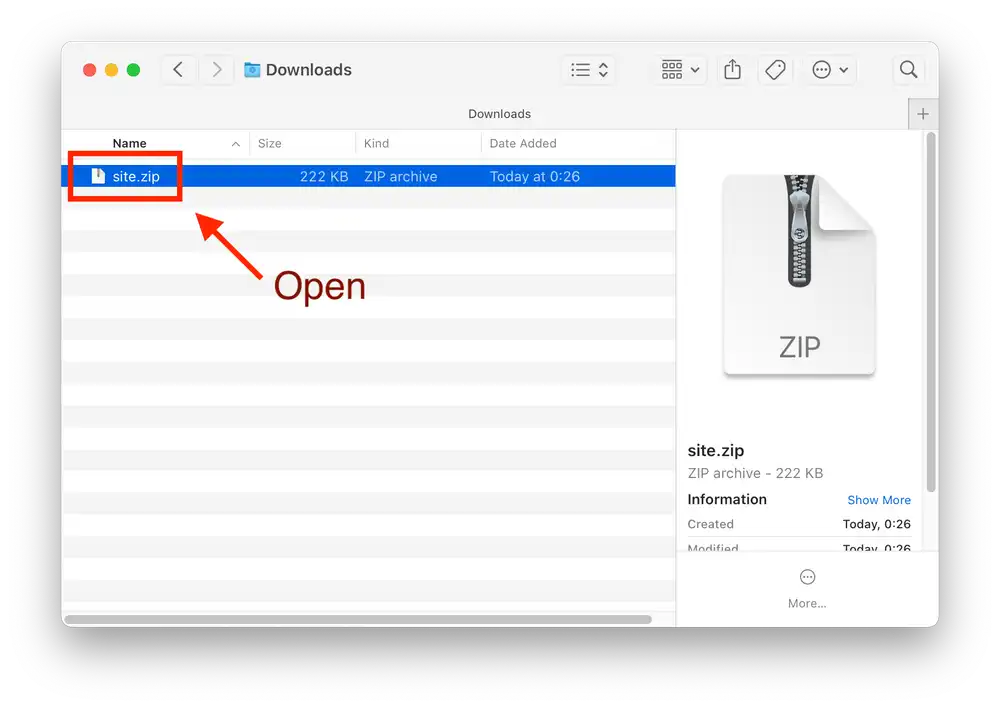
In your operating system's Downloads directory, open the site.zip file that you've just downloaded:
When you unpack the site.zip file, you can see all files needed to view your Koriander site:
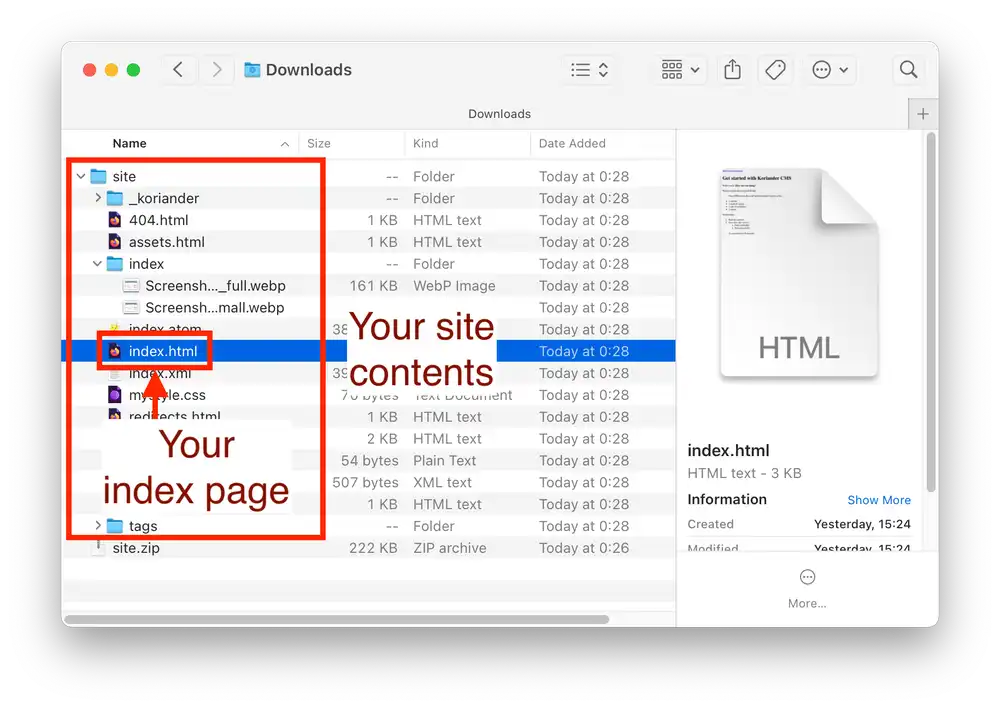
Open the index.html page inside the site directory highlighted on the previous screenshot. This opens a local copy of the index page in your browser: