Here's how to install MediaWiki on a desktop computer running Debian 13 (Trixie). These instructions are partially based on the Running MediaWiki on Debian or Ubuntu instructions from the MediaWiki Wiki. I've extended these instructions to show you how to configure MediaWiki to use SQLite1 and create your first page.
I've tested these instructions on a Debian 13 VM with Gnome on UTM on macOS Sequioa.
The installation consists of 3 steps:
- Configure Apache HTTP server
- Download and unpack MediaWiki
- Configure MediaWiki
Configure Apache HTTP server
Here, you'll configure the Apache HTTP server on your computer to work with PHP files and display MediaWiki correctly.
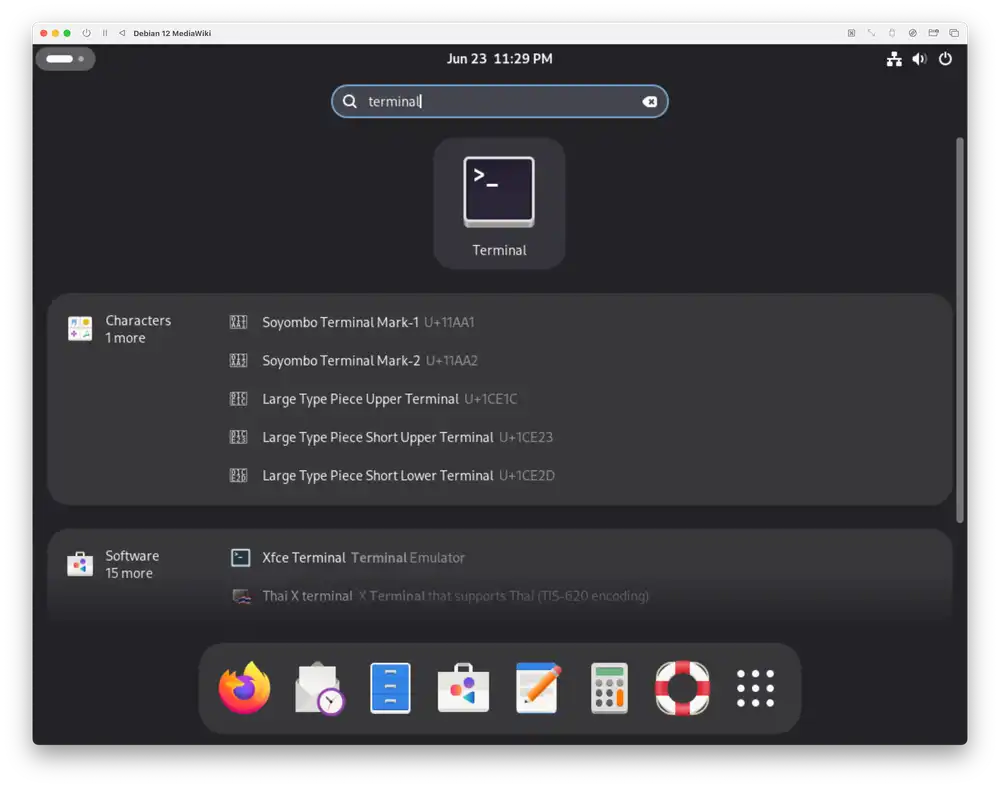
Open the Gnome Terminal.
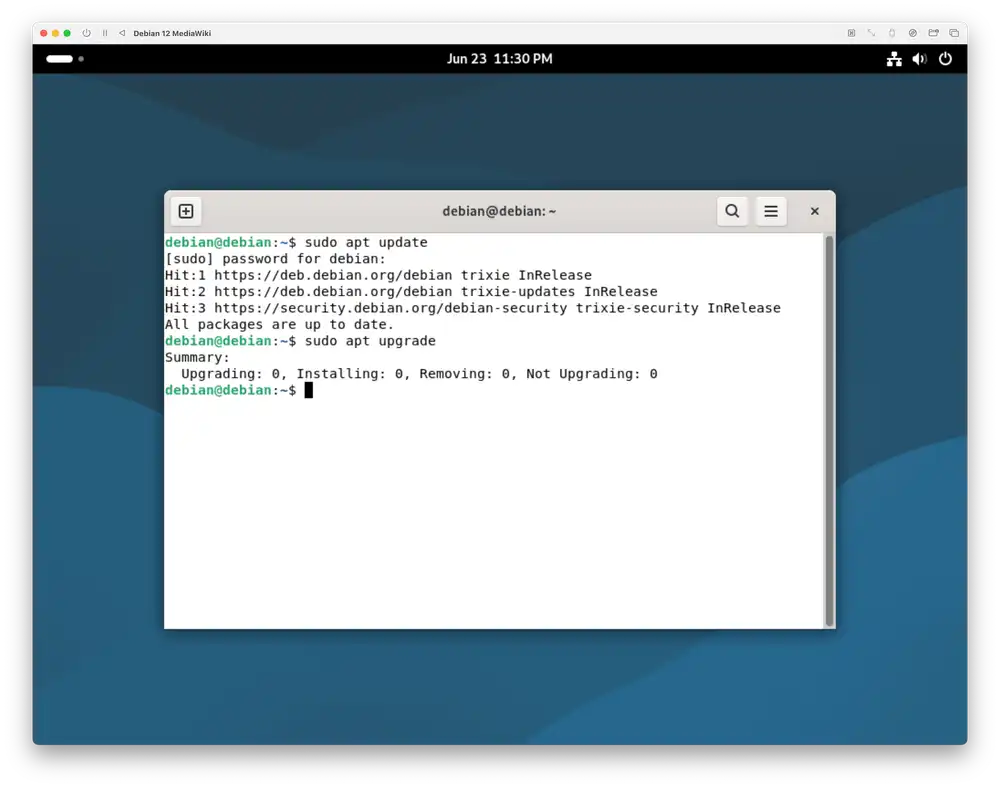
Check if your operating system's packages are up to date by running the following two commands:
$ sudo apt update
$ sudo apt upgrade
When you run commands with sudo in front of them, Debian prompts you for your current user's password. Enter your password and press the Enter key.
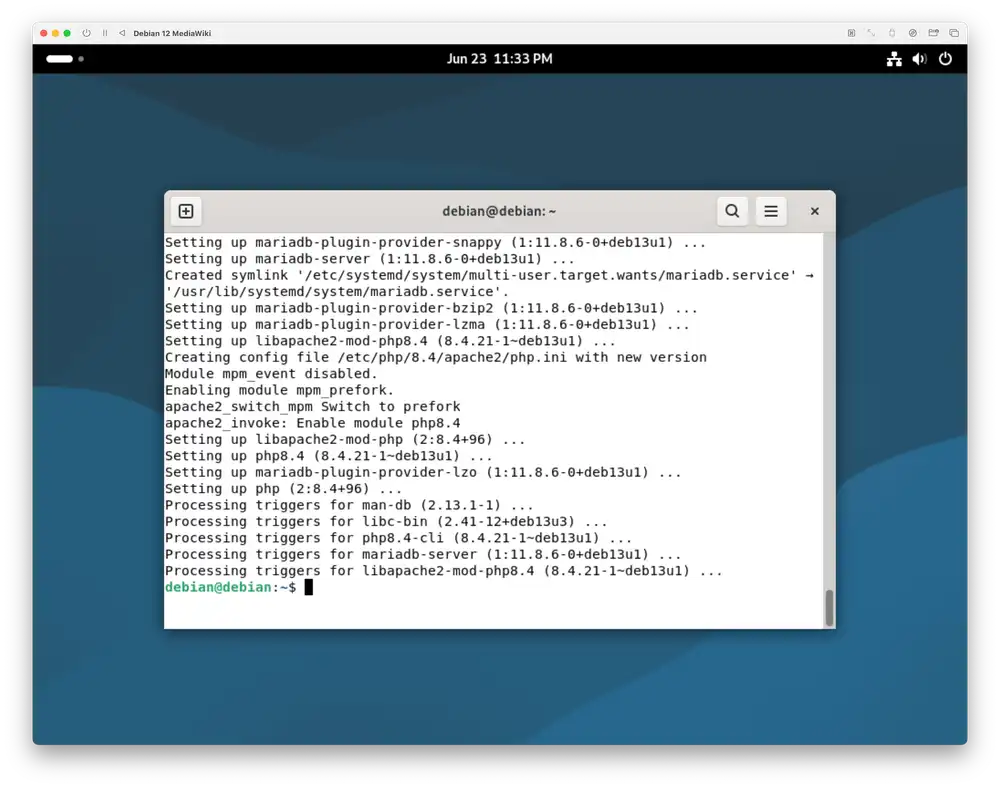
Run the following command to install all packages that MediaWiki needs to run2:
$ sudo apt install --yes apache2 php libapache2-mod-php php-xml php-mbstring php-sqlite3 php-intl
Wait for the installation to finish.
In your terminal, enter the following command to edit your the Apache HTTP server PHP settings:
$ EDITOR=gnome-text-editor sudo -e /etc/php/8.4/apache2/php.ini
You may have to enter your user password again to run this sudo command.
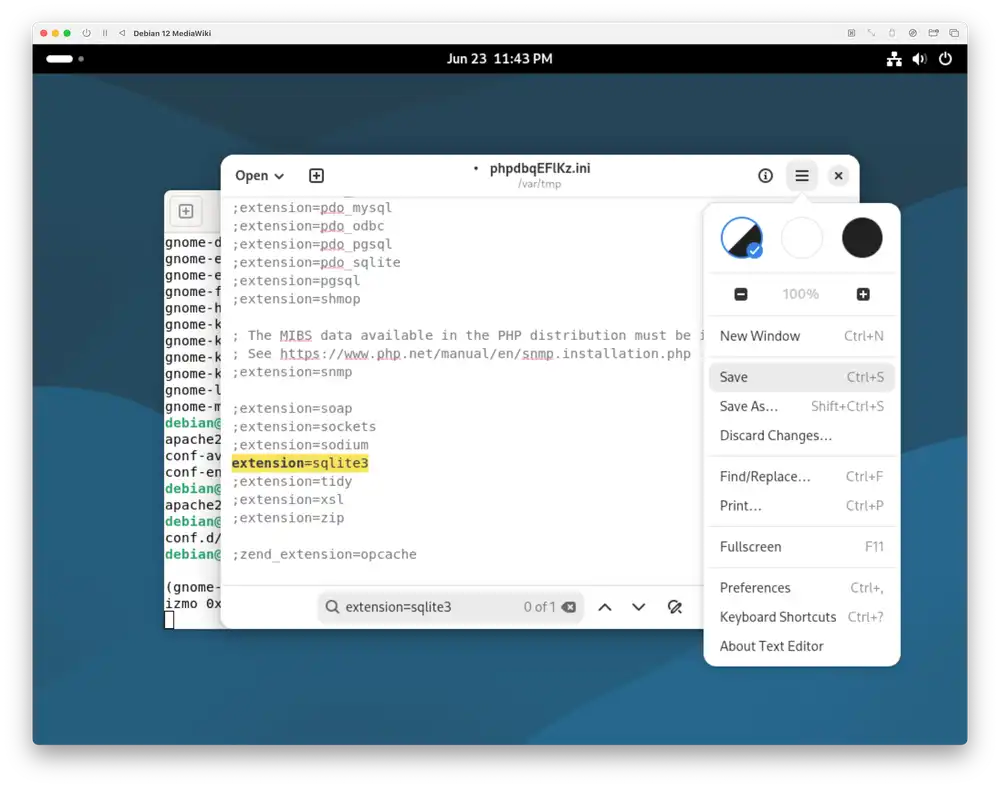
This opens a text editor that you can use to edit the settings contained in php.ini. Find the line using the text editor search:
;extension=sqlite3
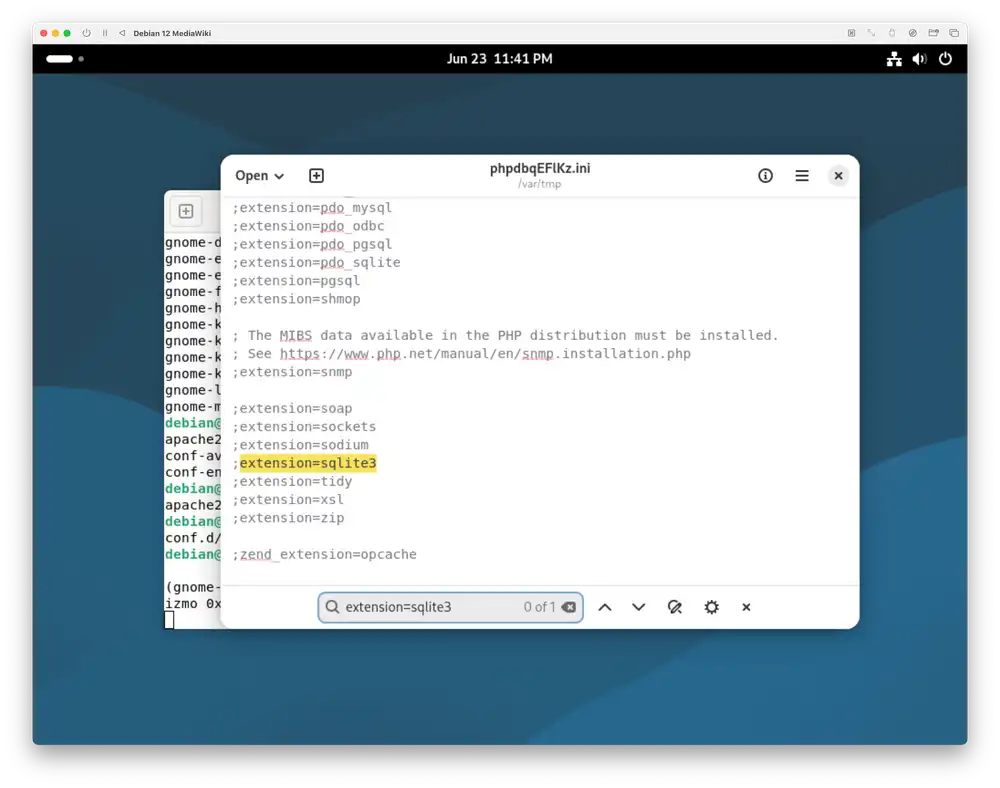
Un-comment this line by removing the semicolon (;) character in the beginning so that the line contains this:
extension=sqlite3
Press the Save menu entry and close the editor to save your changes to the php.ini file.
Test Apache HTTP server
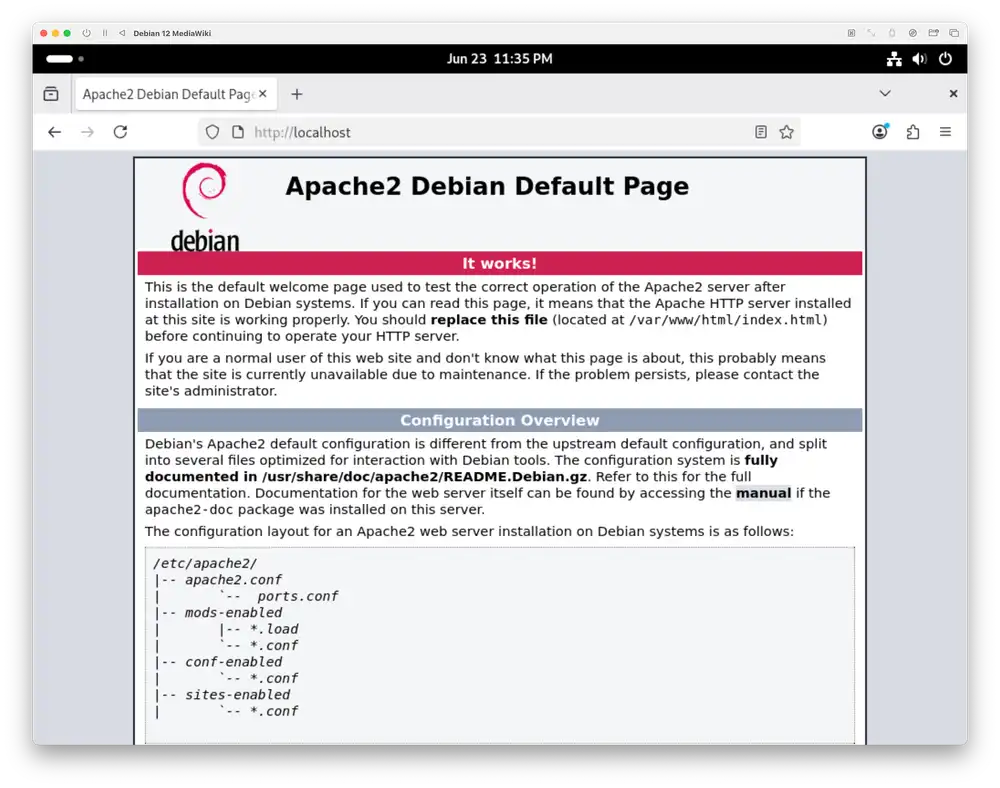
Open your browser and access the following address to test that the Apache HTTP Server runs correctly:
If the Apache HTTP server runs correctly, you should see something like the following screenshot:
Download and unpack MediaWiki
In this step you'll download the latest stable MediaWiki release and make it available to the Apache HTTP server.
Find the latest stable MediaWiki version on the MediaWiki Download page. At the time of writing, the latest stable MediaWiki version is 1.45.3.
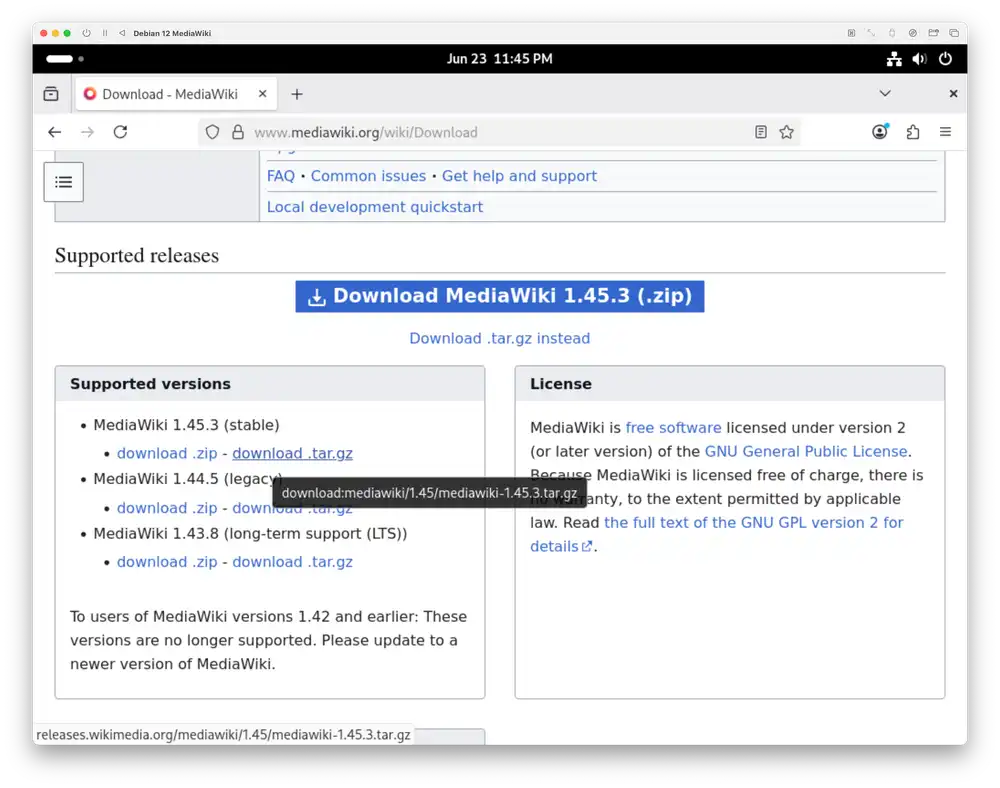
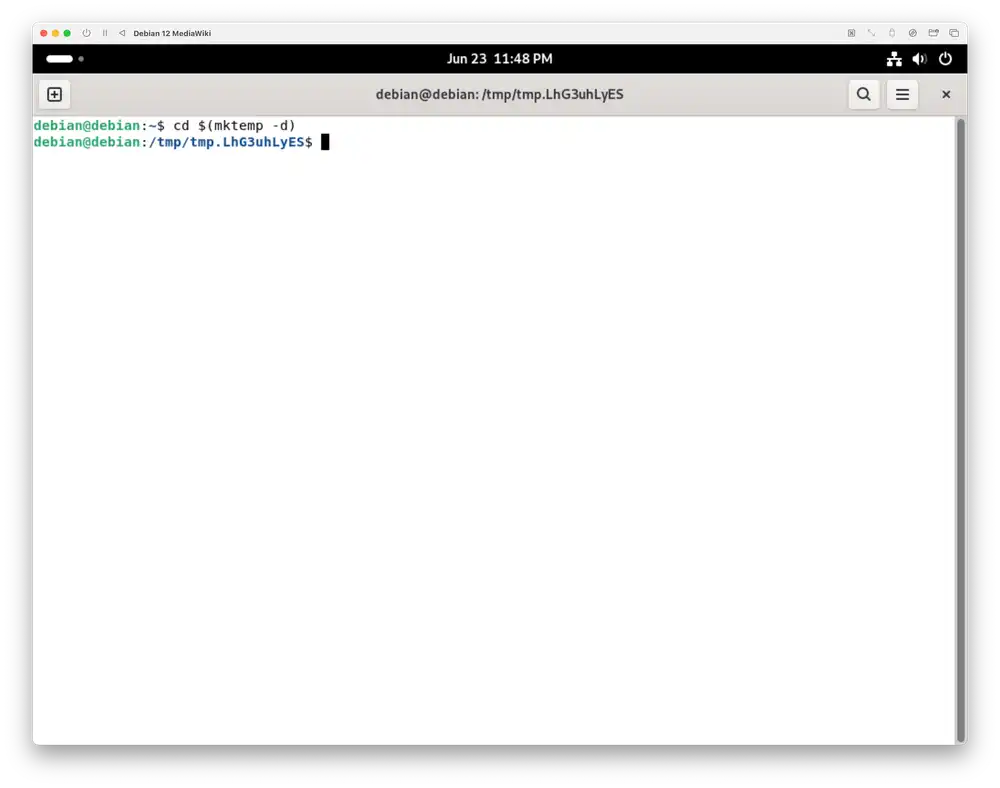
Right-click the blue download .tar.gz link for the stable release and press Copy link. In a terminal, navigate to a temporary directory:
$ cd $(mktemp -d)
Type the letters wget and paste the link that you've just copied from the MediaWiki download page. You should now have the following line in your terminal assuming that the latest stable release is 1.45.3.
$ wget https://releases.wikimedia.org/mediawiki/1.45/mediawiki-1.45.3.tar.gz
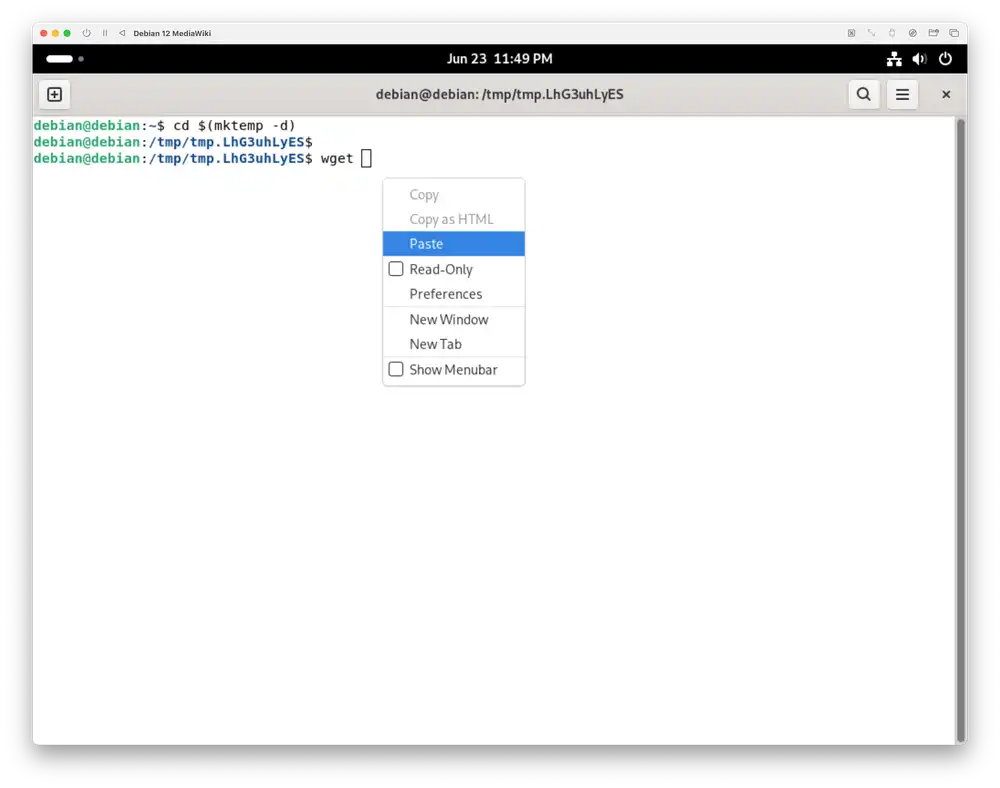
Press the Enter key in your terminal to download the latest stable MediaWiki release.
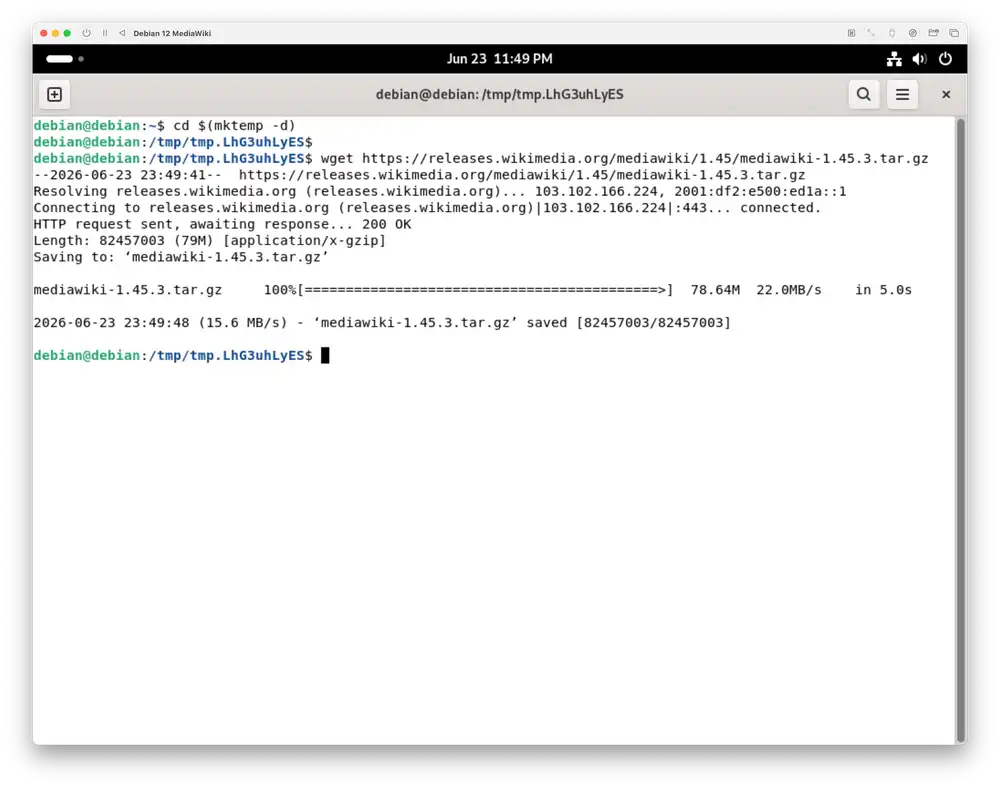
Unpack the release to /var/lib/mediawiki with the following commands:
$ tar -xzf mediawiki-*.tar.gz
$ sudo mkdir /var/lib/mediawiki
$ sudo mv mediawiki-*/* /var/lib/mediawiki
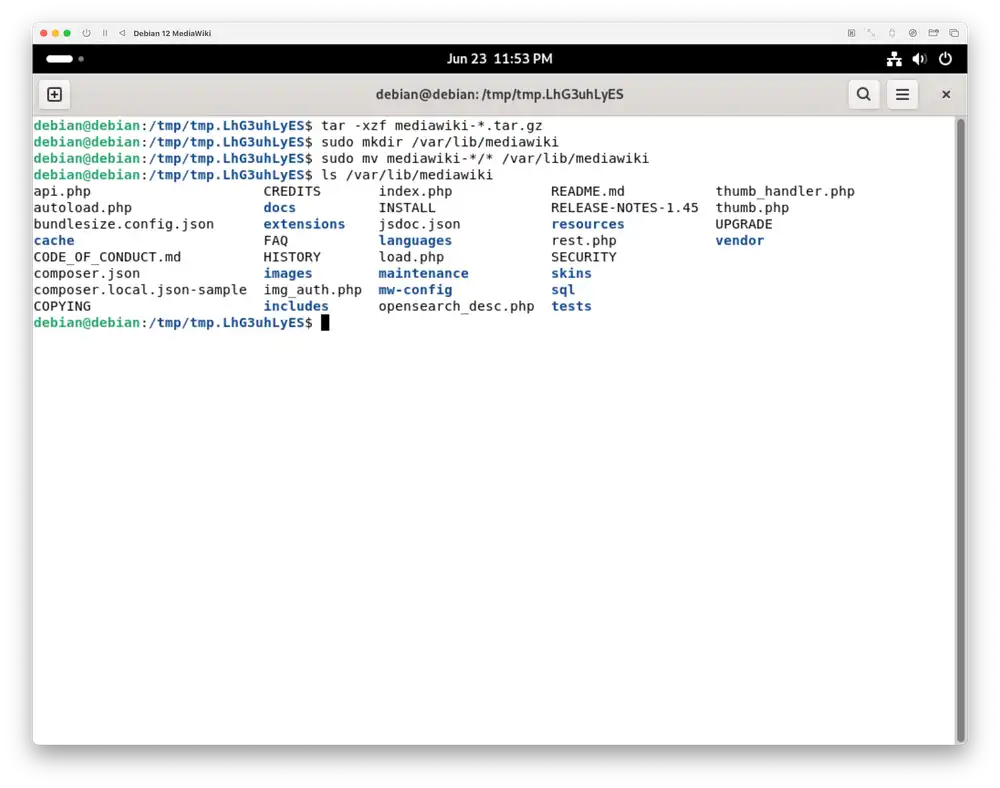
Check that you've copied all files with the following command:
$ ls /var/lib/mediawiki
You should see a number of files here like on the following screenshot:
Link the MediaWiki directory into /var/www/html to make it available to the Apache HTTP server with the following command:
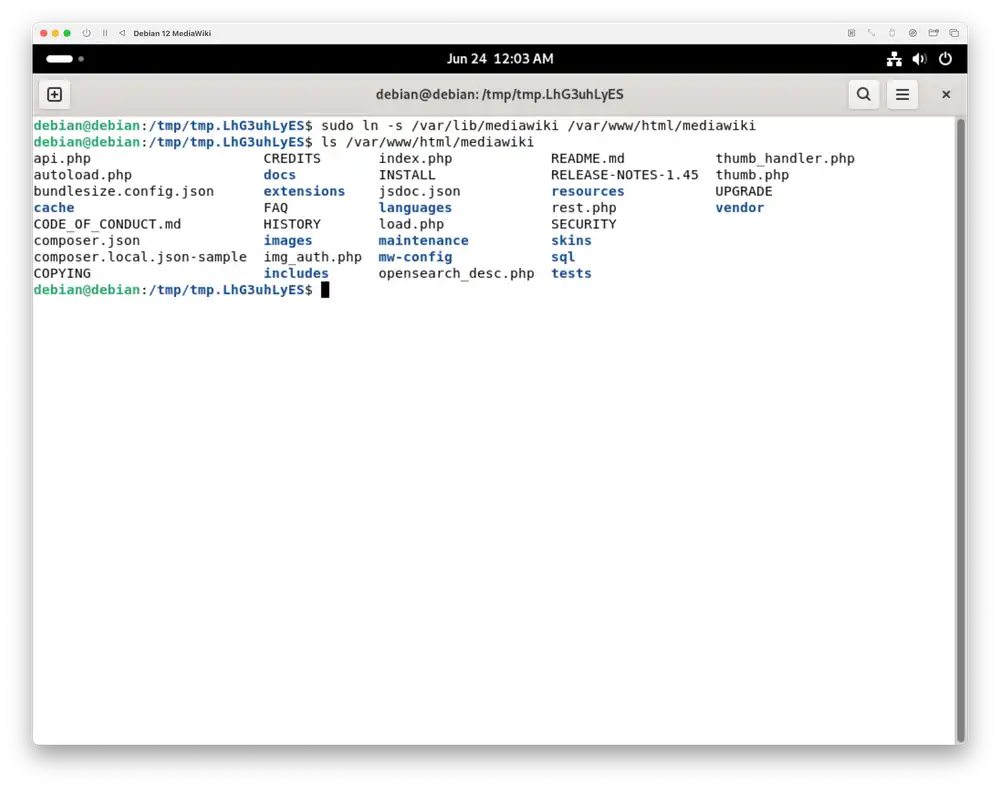
$ sudo ln -s /var/lib/mediawiki /var/www/html/mediawiki
You can run ls /var/www/html/mediawiki one more time here to check that you've linked the directory correctly.
Run the following command in your terminal to make sure that MediaWiki can write its SQLite database files:
$ sudo install --mode 770 --group www-data --directory /var/www/data
Configure MediaWiki
In this section you're going to configure MediaWiki, log in, and create your first page.
Access the MediaWiki configuration page in your browser at the following address:
http://localhost/mediawiki/mw-config/index.php
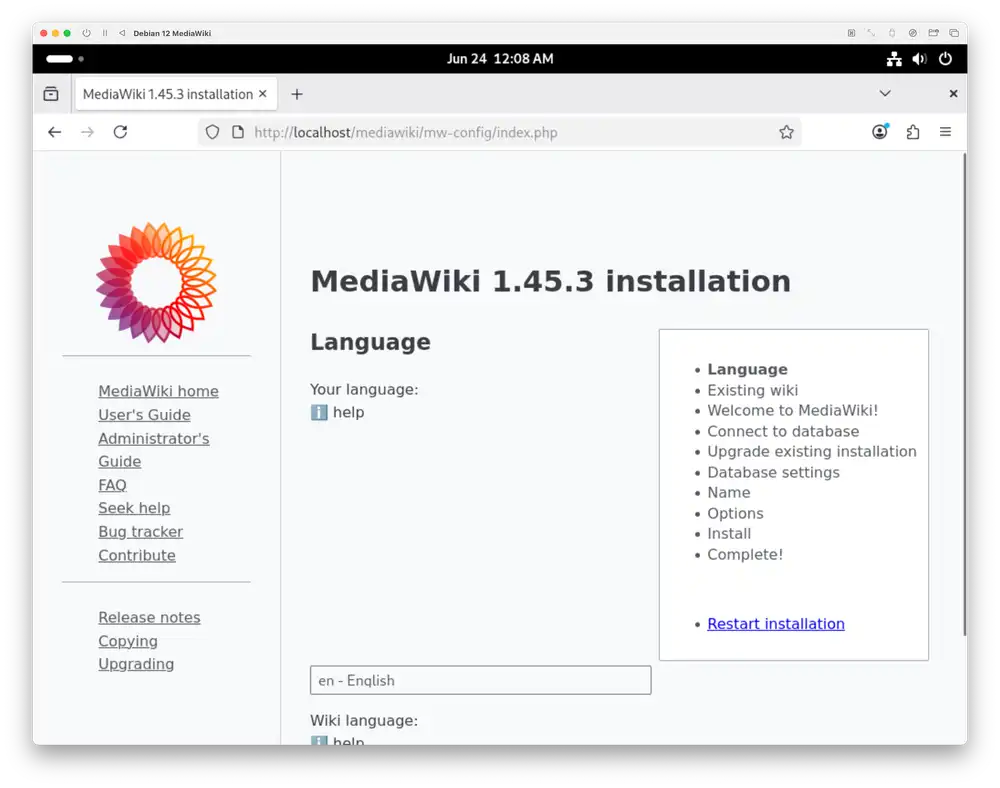
Select your preferred languages and press Continue to get to the Welcome to MediaWiki screen. Scroll down and make sure you can see the following text:
The environment has been checked.
You can install MediaWiki.
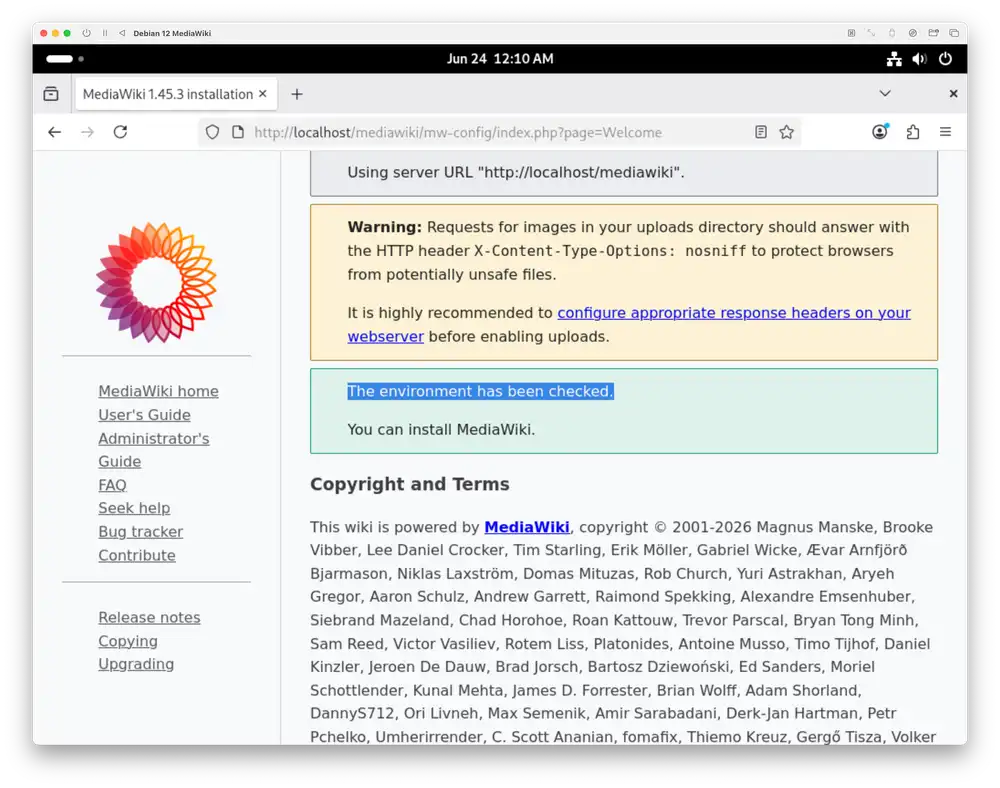
Scroll down and press the blue Continue button to get to the Connect to database screen.
On the Connect to database screen, scroll down and select SQLite under Database type.
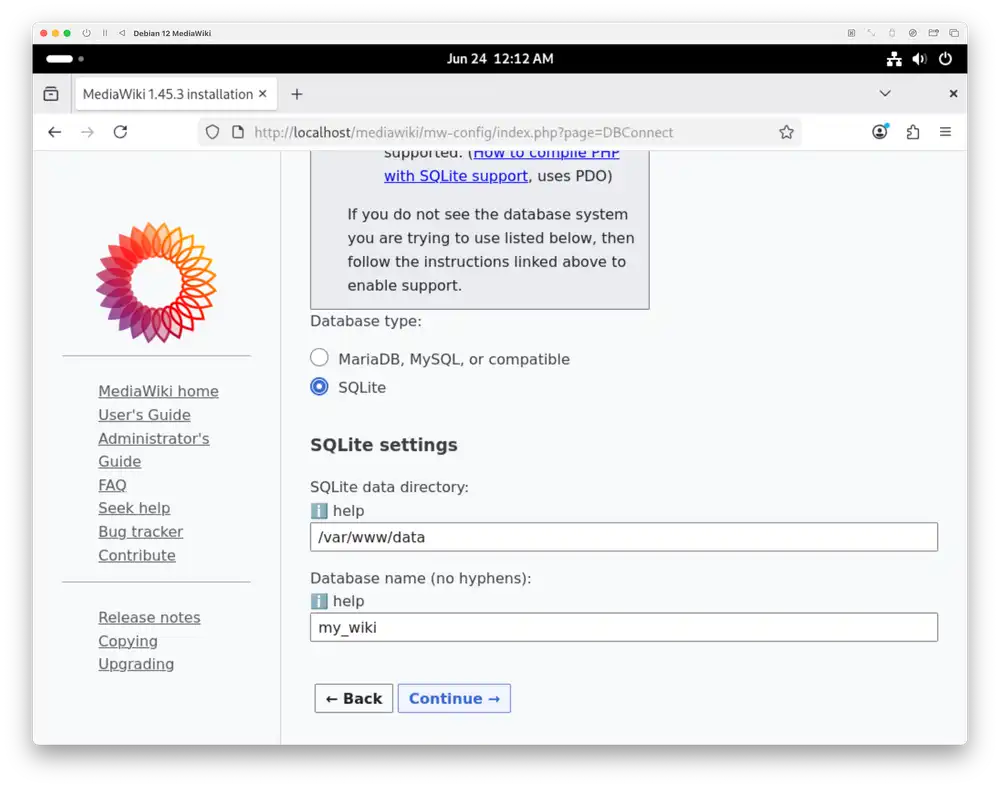
Press the blue Continue button to reach the Name screen.
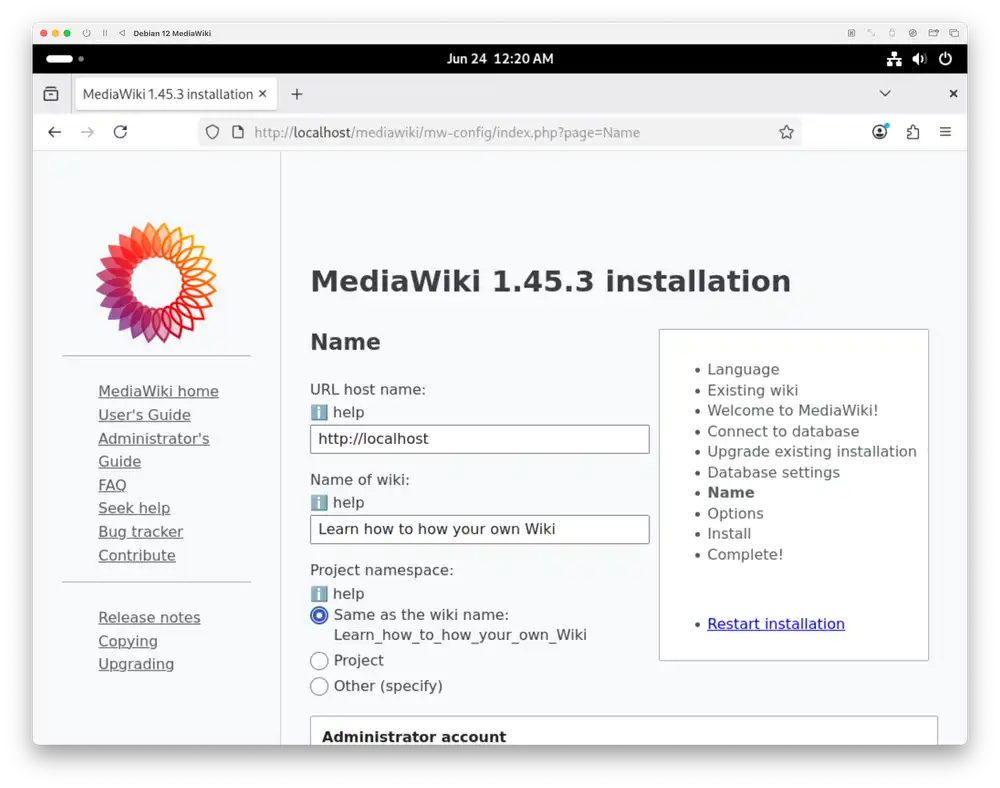
Scroll down to set up an Administrator account. Choose a username and strong password. You can leave out the email address. You may want to deselect the Share data about this instance with MediaWiki developers checkbox.
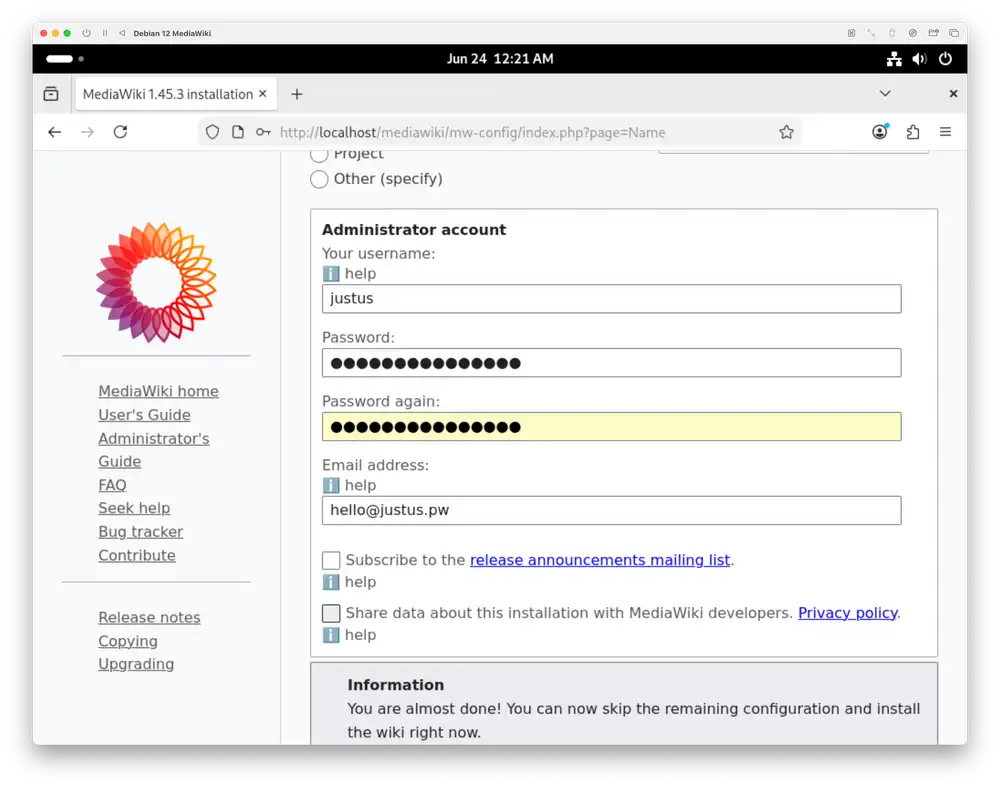
Select the I'm bored already, just install the wiki radio button and press Continue to finish the installation.
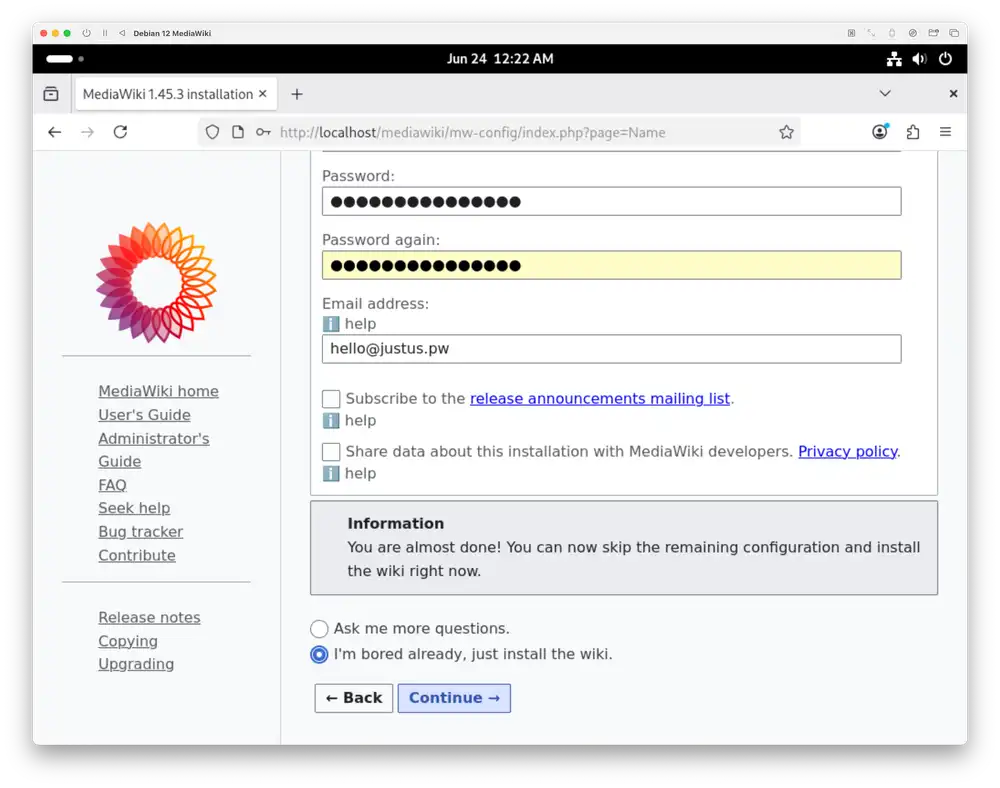
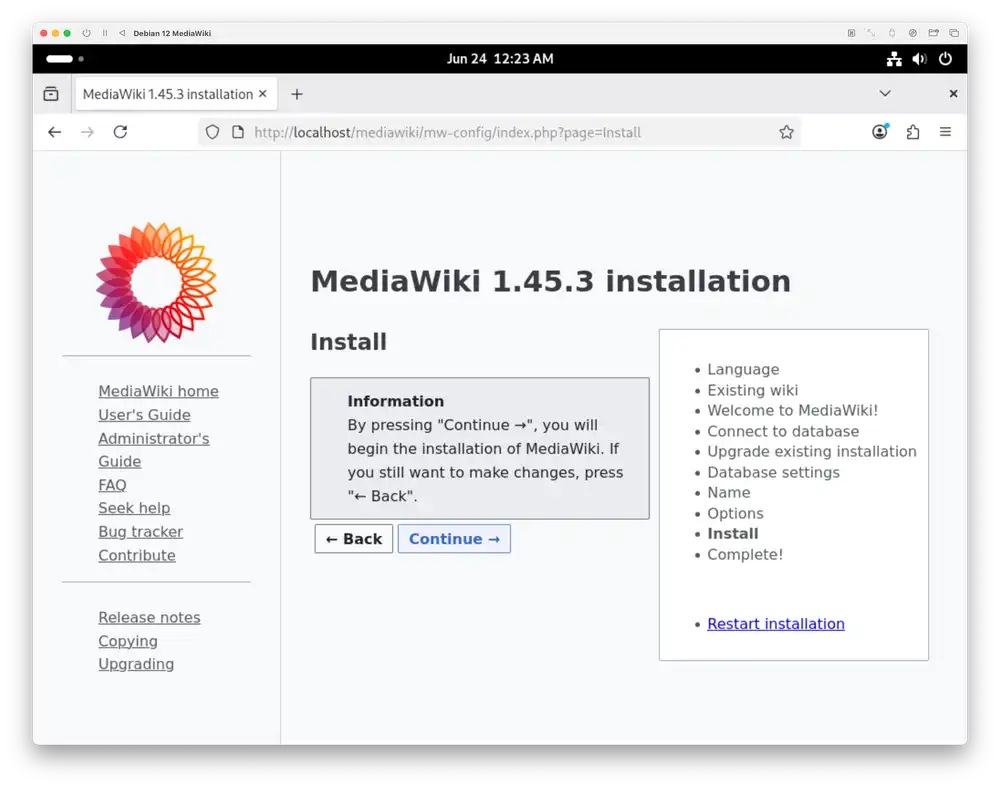
The MediaWiki installation now takes you to the Install screen. Press Continue again.
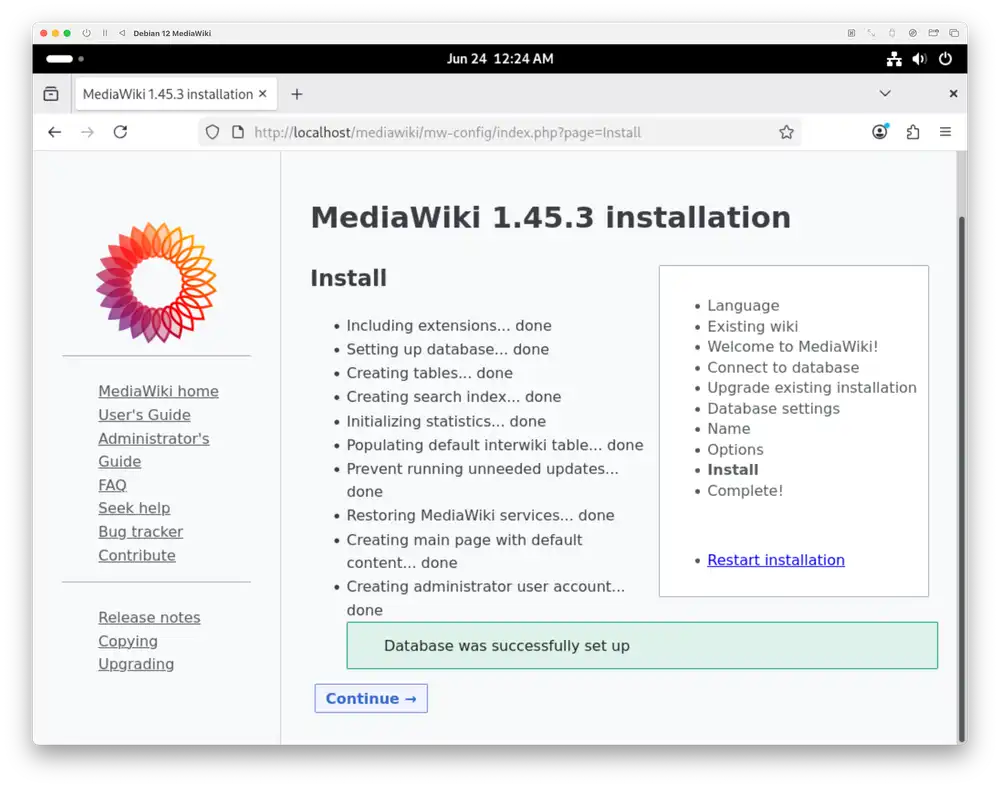
The Install screen now shows you the installation steps that it just ran through and a green box at the end saying the following:
Database was successfully set up
Copy the settings
Press Continue again. This downloads a LocalSettings.php file to your computer.
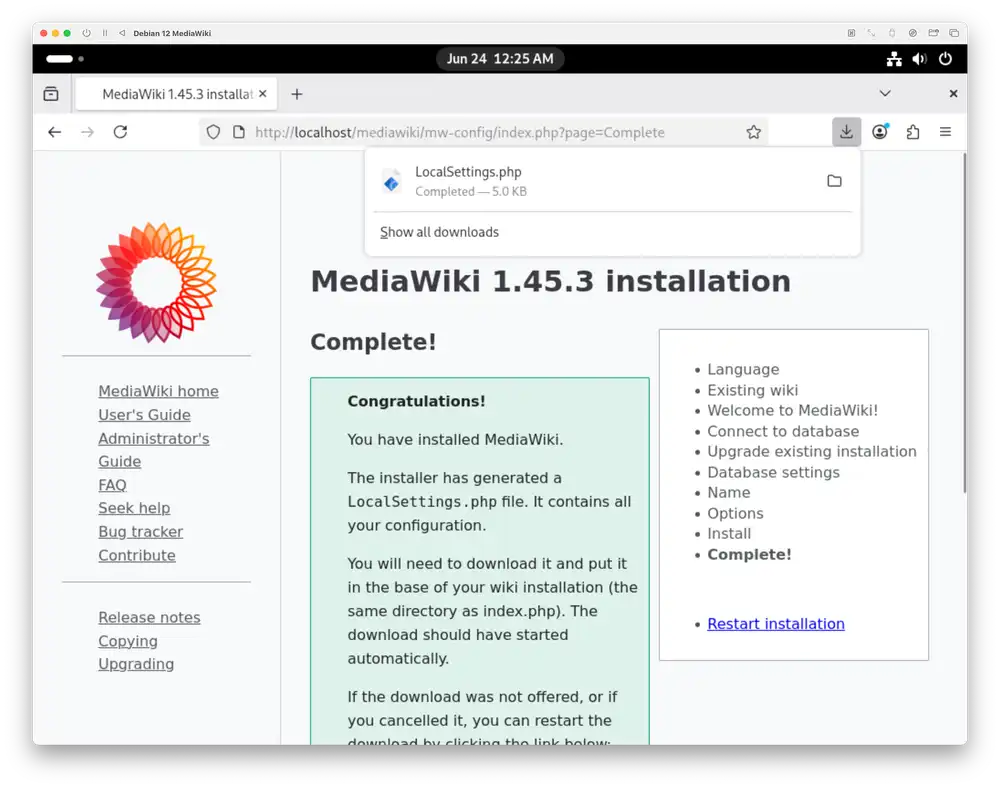
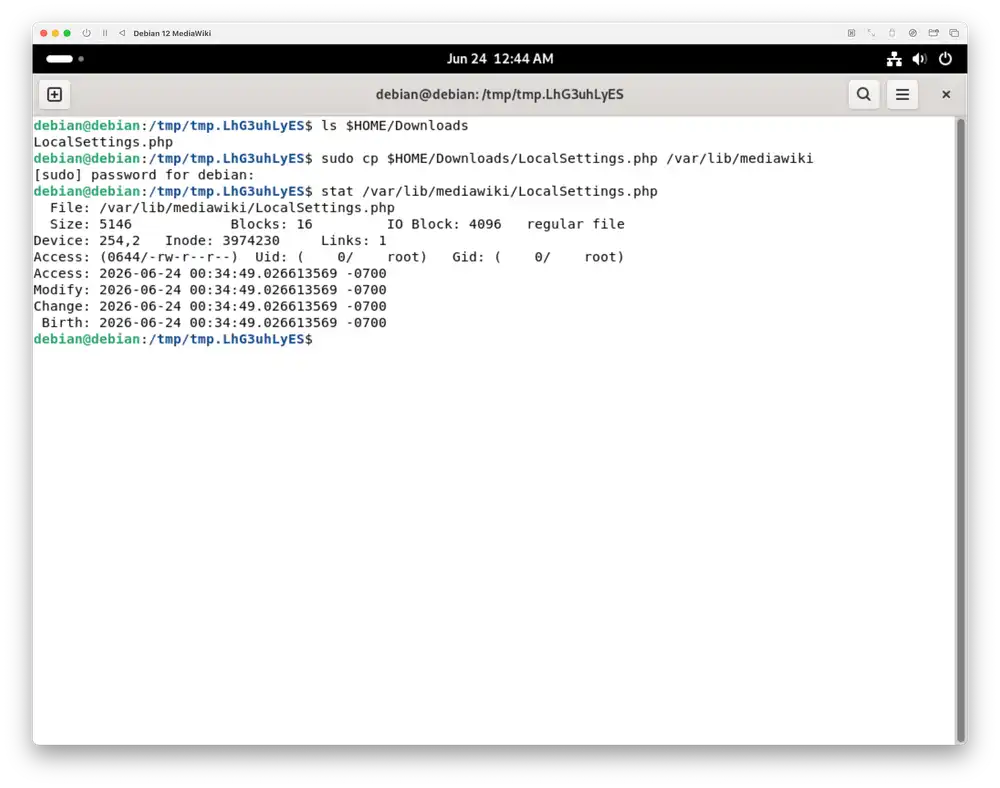
In your terminal, check that your Downloads directory contains this LocalSettings.php file and copy it to /var/lib/mediawiki with the following commands:
$ ls $HOME/Downloads
$ sudo cp $HOME/Downloads/LocalSettings.php /var/lib/mediawiki
Run stat /var/lib/mediawiki/LocalSettings.php to see if the file exists at /var/lib/mediawiki.
Log in
Open the following address in your browser:
http://localhost/mediawiki/index.php/Main_Page
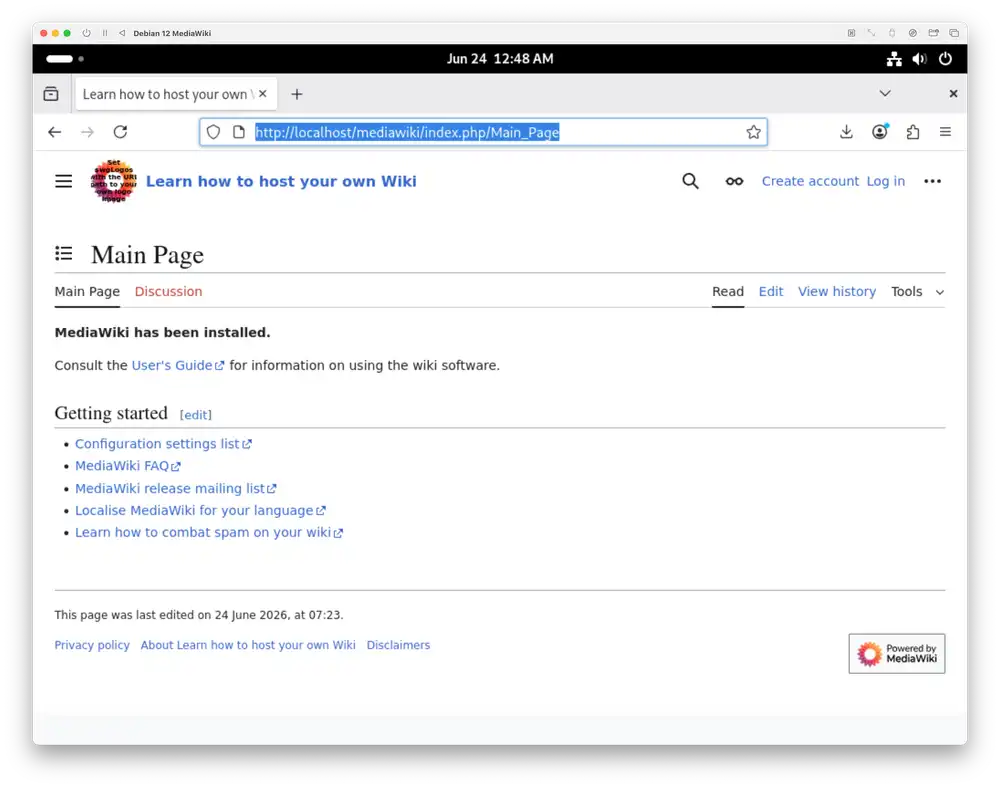
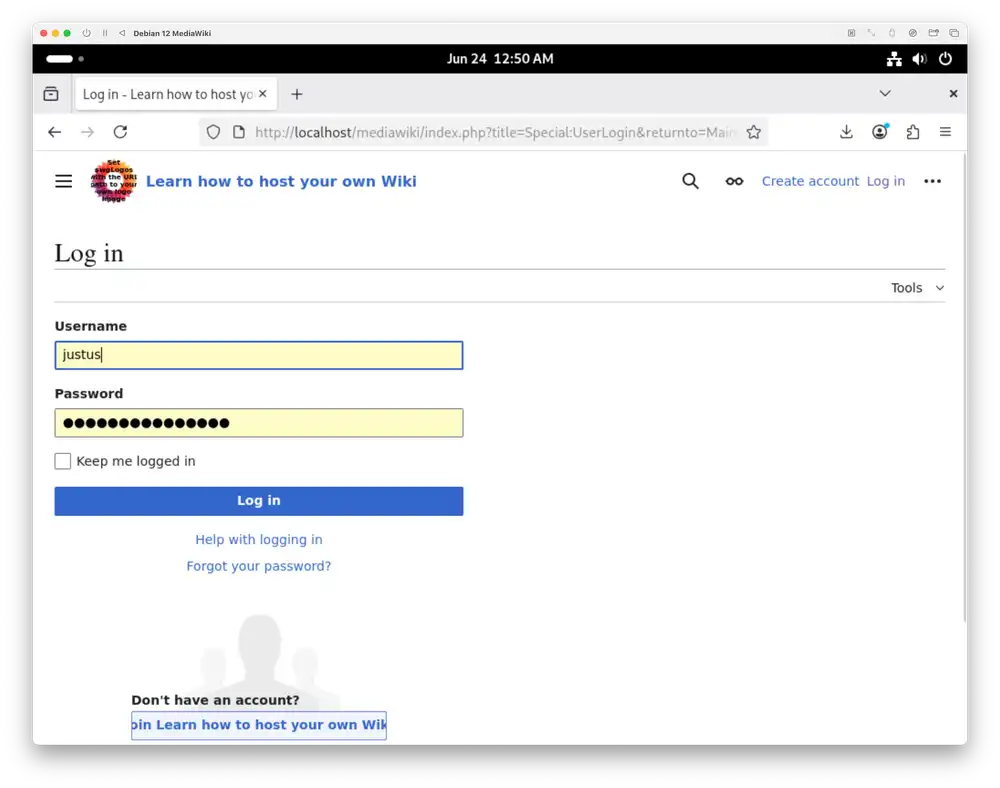
Follow the Log in link in the top right. Log in with the username and password that you've entered in the Administrator account panel.4
Edit a page
MediaWiki should direct you back to the Main Page after you log in.
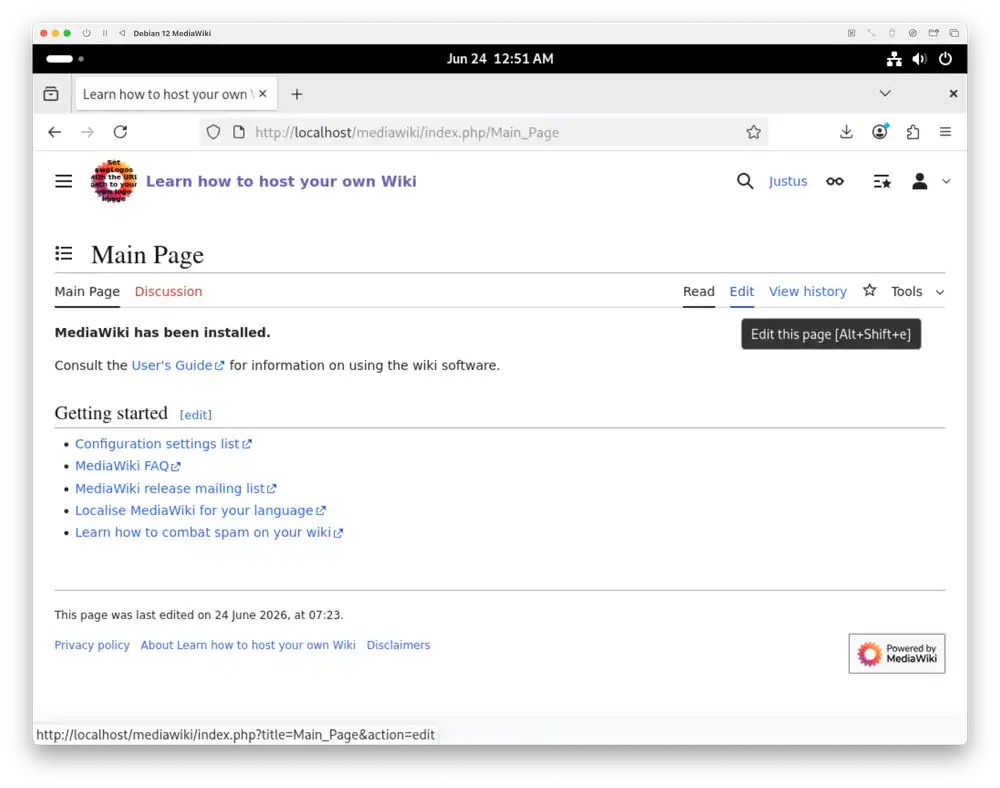
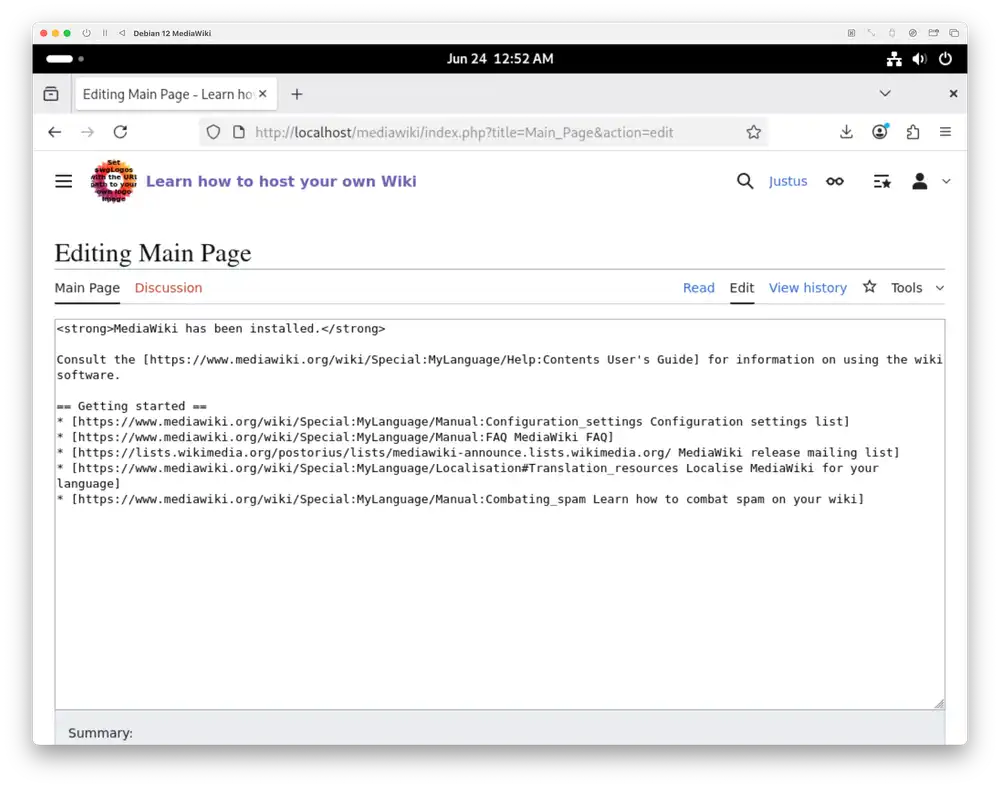
When you go to the Editing Main Page page, you can change the contents of the Main Page.
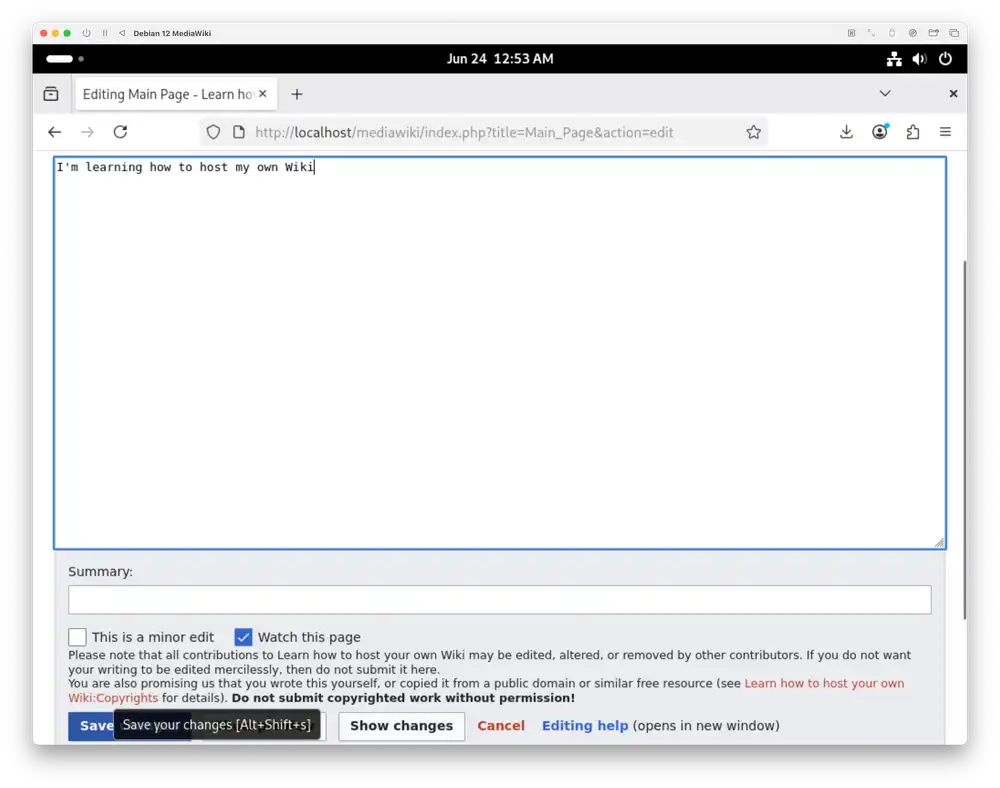
You can edit the contents of the Main Page however you like. Press the blue Save changes button to make your changes permanent.
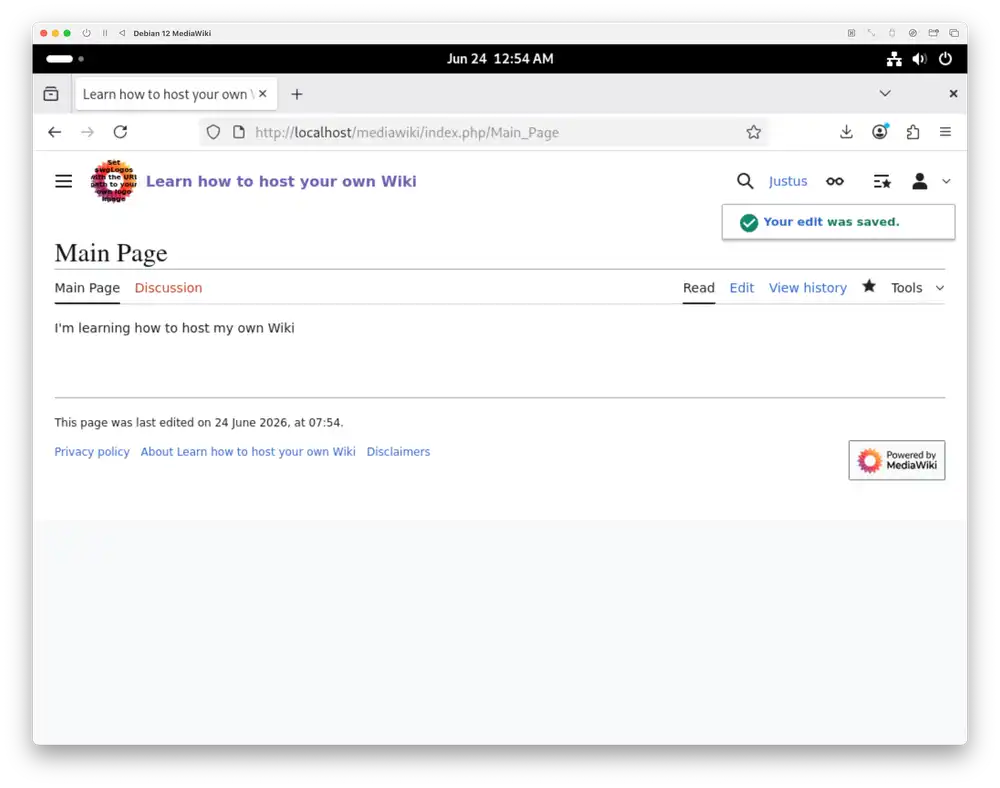
When you press Save changes, MediaWiki takes you back to the page that you've just edited.
Create page
Let's say you'd like to make a new page called Cooking recipes. Enter Cooking recipes in the top search box like in the following screenshot:
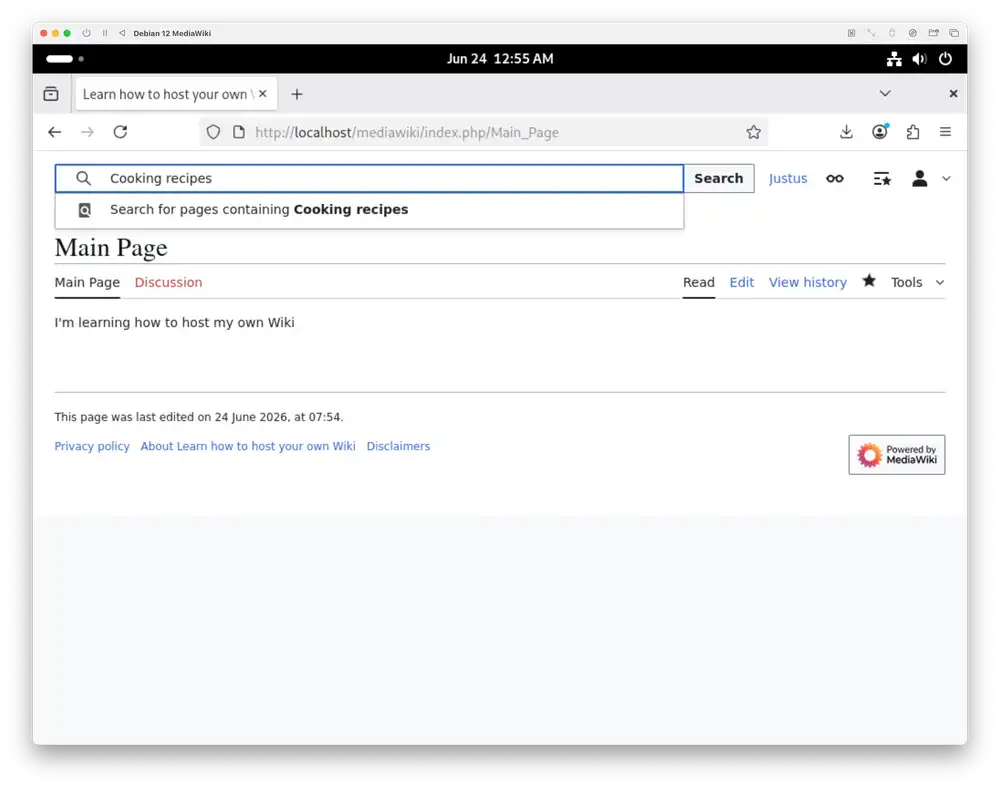
Press the Enter key or the Search button to the right of the search box. This takes you to a Search results page.
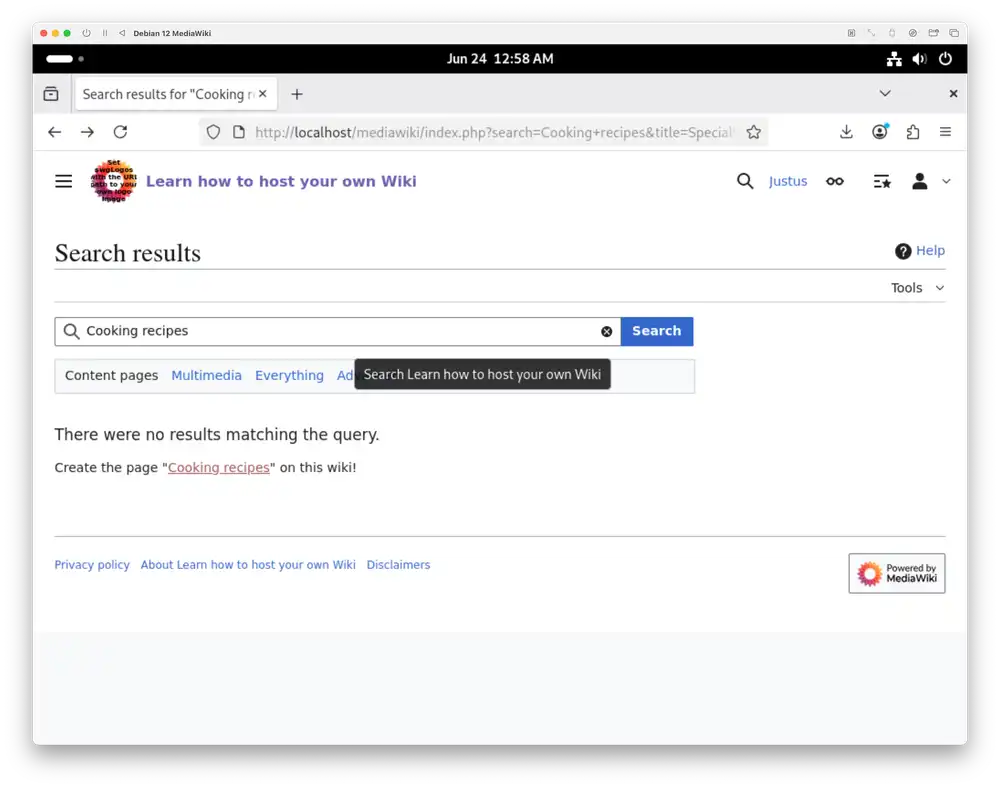
Since you haven't created this page, MediaWiki shows the following:
There were no results matching the query.
Create the page "Cooking recipes" on this wiki!
Follow the red Cooking recipes link.
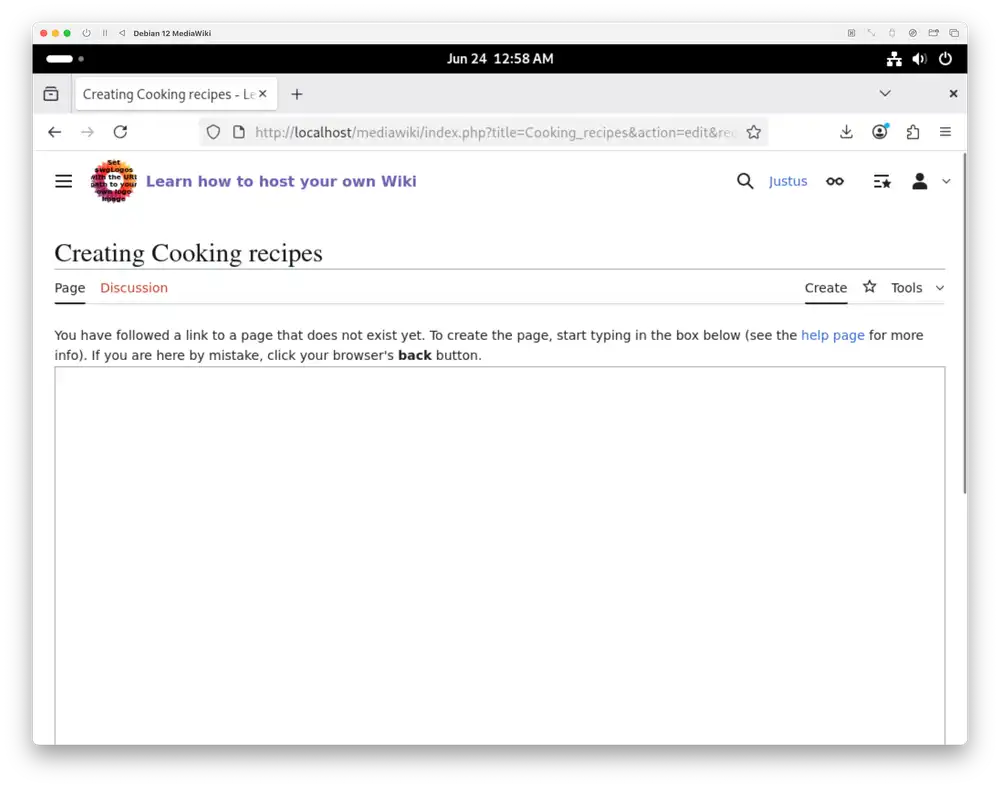
Add something to your new page and press the blue Save page button.
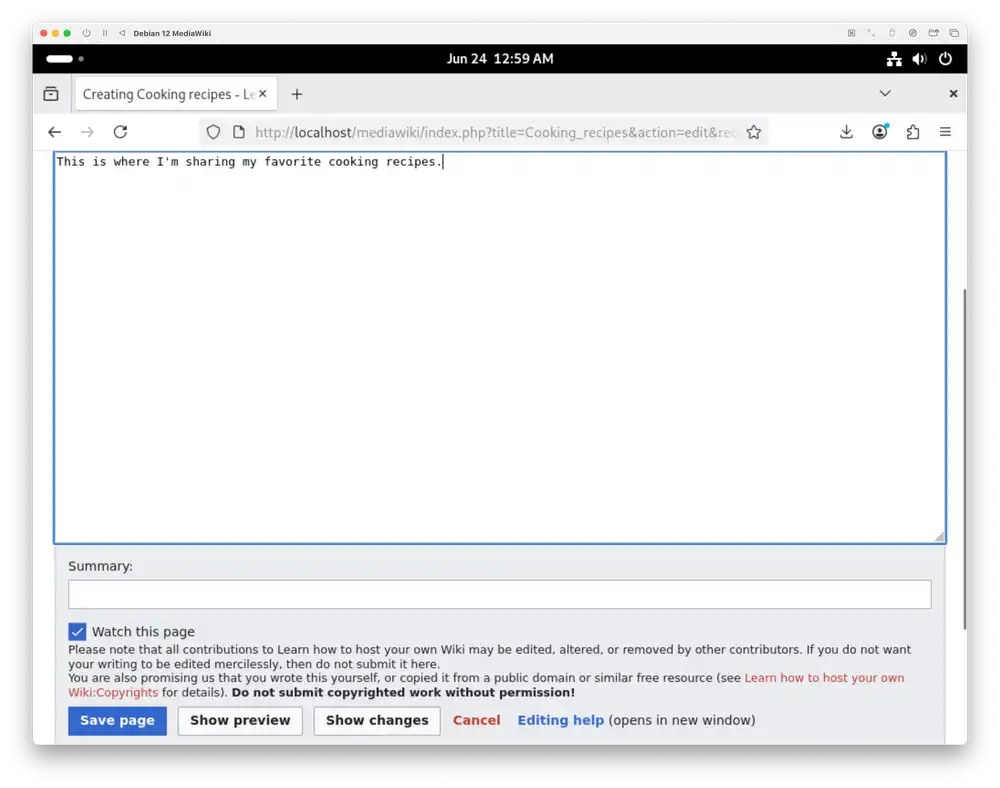
MediaWiki takes you to your new Cooking recipes page after you press Save page.
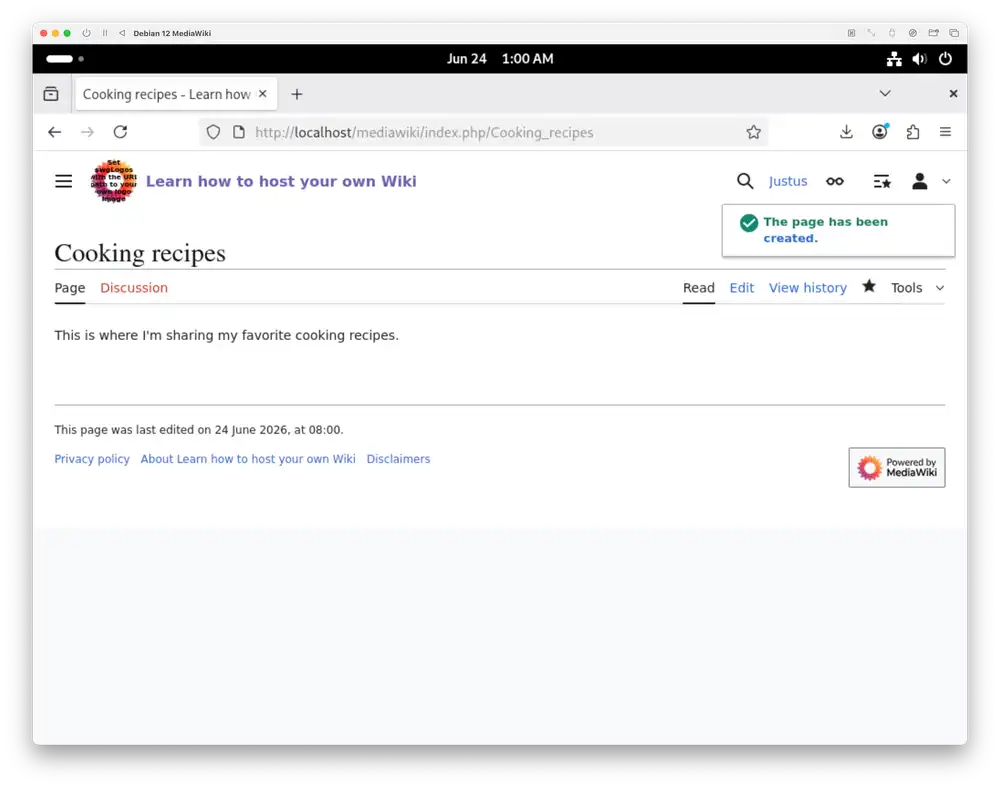
You've now created your first page on your new MediaWiki instance. What will you do next? MediaWiki gives you plenty of useful tools and possibilities are limitless.3
Further steps
Here are some thing you can try on your new MediaWiki:
- Activate the VisualEditor extension for a WYSIWYG editor.
- Link to other Wikis with Interwiki links
- Learn how to change the default Wiki logo
- Perform MediaWiki system administration tasks
- Try a new extension like Semantic MediaWiki
Workshop at DWeb Camp 2026
I'm going to host a workshop on how to run your own MediaWiki instance at DWeb Camp 2026: Root Systems in July 2026. I hope to see you there!
If you have any questions about self-hosting MediaWiki, write me an email. You can find my email address at the bottom of this page.
-
Manual:SQLite on www.mediawiki.org/wiki ↩
-
I found that you need to add
php-intl, too. Otherwise, the MediaWiki configuration complains that you're missing the intl extension. ↩ -
Welcome. Anything is possible with MediaWiki. The only limit is yourself. You can do anything with MediaWiki. ↩
-
You can create and edit pages without logging in by default. This step helps verify that MediaWiki correctly created your account. ↩